Connect a compatible Android phone to the system. Use the touchscreen to make a phone call, listen to music, and more. Visit the Android Auto website for more information.
Park in a safe place before connecting your Android smartphone and launching any compatible apps.
- Download the Android Auto app to your phone.
- Connect the phone to the USB port (2.5A) (see
USB Port). The phone is automatically paired.
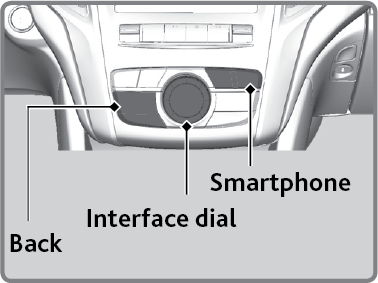
When connected via Android Auto, you can use the navigation screen to access the Phone, Google Maps (Navigation), Google Play Music, and Google Now functions. When you first Android Auto, a tutorial will appear on the screen.Use these buttons to control Android Auto:- Smartphone Button: Press to display the Android Auto menu screen.
- Interface Dial (ENTER/MENU Button): Move or rotate the interface dial to select the item. Press the button to make the selection.
- Back Button: Press to go back to the previous display.
-
Maps (Navigation): Display Google Maps and use the navigation function just as you would with your Android phone. When the vehicle is in motion, it is not possible to make keyboard entries. Stop the vehicle in a safe location to undertake a search or provide other inputs.
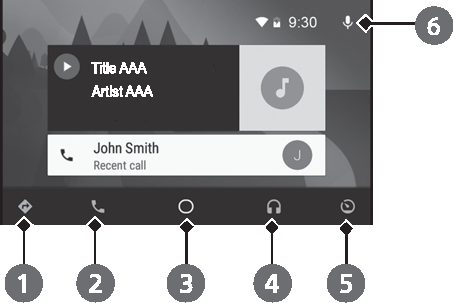
- Phone (Communication): Make and receive phone calls as well as listen to voicemail.
- Google Now (Home Screen): Display useful information organized by Android Auto into simple cards that appear just when they’re needed.
- Music and Audio: Play Google Play Music and music apps that are compatible with Android Auto. To switch between music apps, press this icon.
- Go back to the previous screen of this audio system.
- Voice: Operate Android Auto with your voice.