


How to Enter Information
You can enter information (e.g., city names, street names, numbers, and symbols) when prompted on the input screen.
Using Voice Commands
When you see  in this manual, voice commands are available for
that feature.
in this manual, voice commands are available for
that feature.
The system recognizes certain commands. Available navigation
voice commands
- Press the (Talk) button, and say the letter, number, or symbol
(e.g., say “1” ).
On list screens:
- Say the number of the list item (e.g., say “Three” to select item 3).
- Say “Back” to return to the previous screen.
- Say “Cancel” to end the voice command function.
- Say “Next” for next page.
- Say “Previous” for previous page.
Using the Touchscreen
Select a character or icon on the screen to select it.
- Select
 to remove the last entered character.
 - Select
 to display upper/lower case characters.
 - Select
 to enter a space character.
 - Select
 to display other types of characters.
 - Select
 to change the keypad language.
 - Select
 to entered character.

On input search screens, the suggested search terms are
displayed. Select  to display a list of possible entries.
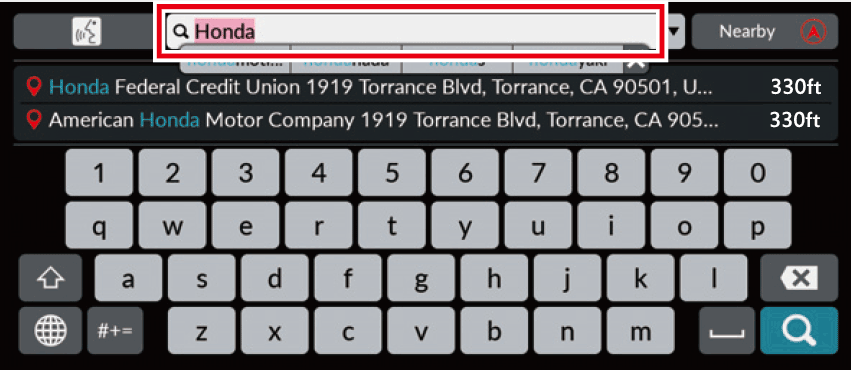
You can remove all entered characters when you press and
hold the search bar then select .