


System Updates
System Updates uses the telematics control unit (TCU) or Wi-Fi communication capability to operate.
When an update for your system becomes available, a screen prompting you to update your system will be displayed on the audio/information screen.
When an update for your system becomes available, a screen prompting you to update your system will be displayed on the audio/information screen.
- Detail
-
If new software has been released, perform an update as soon as possible.If a system update fails, please consult a dealer.System updates that change specifications may result in some discrepancies with the information in this owner’s manual. For the most up-to-date information, please refer to the Honda homepage.Certain features may not be available during system updates.
Performing System Update
-
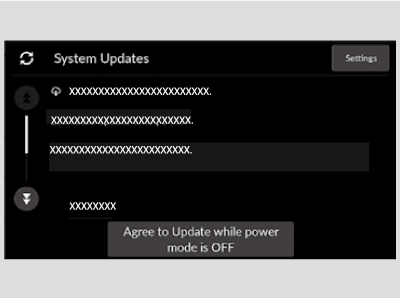
- Select System Updates.
- Select Agree to Update while power mode is OFF to give permission for the update.
- The installation progress screen displays.
- While the power mode is set to OFF, an update started notification displays for a few seconds.
- The next time the power mode is turned to ON, the system update results screen will be displayed.
- System update results can also be viewed from Settings→Update History within System Update.
-
- Detail
-
Make sure your vehicle is stopped in a safe location before starting a system update.If you have pressed Agree to Update while power mode is OFF on the agreement screen when an update is being offered, or Automatic Update* is set to ON, and the update started notification is not displayed even though the power mode is set to OFF, it may be due to one or more of the conditions listed below. For more information, consult a dealer.
- The shift position is not in P.
- The vehicle is providing one or more emergency notifications.
- The 12-volt battery is depleted.
If the system is being updated via Wi-Fi, you will not be able to use this feature in some situations based on Wi-Fi authentication methods.
For example:- The connection requires you to log in.
- Agreement to terms of use is required.
Download is resumed when a new network connection is established.
System Updates Settings
You can change or confirm system update settings.
- Press the
 button.
 - Select System Updates.
- Select Settings.
- Select the option you want to change or confirm.
The following settings can be set.
- Automatic Update*
- Automatic Download
- Control Unit Versions
- Connection Setup
- Update History
- Detail
-
To perform a System Update via Wi-Fi, check the box next to your desired network in General Settings→Connections→Wi-Fi→Options→Add Network or Saved Network.
* Not available on all models
- Recommended topic(s)