


User Information
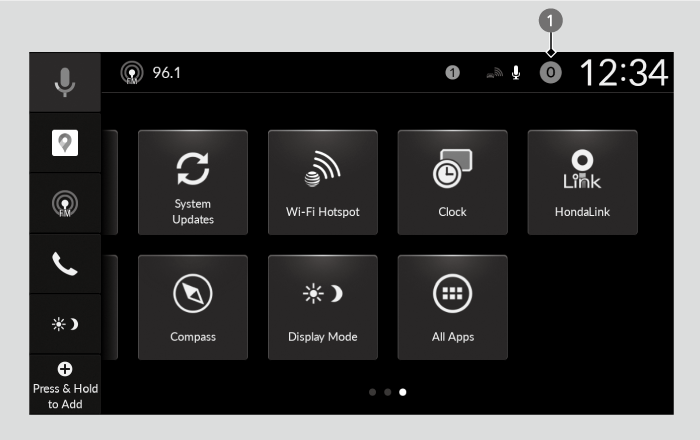
- User Information
You can add and change users, as well as customize user settings.
By registering a User, you can personalize your vehicle settings.
You can select a user when the audio/information screen loads, even when the doors are open or unlocked.
By registering a User, you can personalize your vehicle settings.
You can select a user when the audio/information screen loads, even when the doors are open or unlocked.
By linking your profile with your Google Account, you can enjoy a more personalized Google built-in experience. For more assistance on account linking, visit the Google homepage.
- Detail
-
This feature cannot be used while driving.You can customize settings individually for each user.
You can customize security settings for each user. If you have forgotten security settings, you will need to delete the user and create a new one. If you have forgotten security settings for the Owner user, please contact a dealer or Honda Customer Services.
Certain features are unavailable when using a newly created user or the Guest user.
Registering a User
-
- Select User Info.
- You can also add users by selecting Profile Settings.
- You can add users even when the doors are open or unlocked.
- You can also add users by selecting Profile Settings.
- Select Change Profile.
- Select Add profile.
- Enter User Information.
- Select User Info.
-
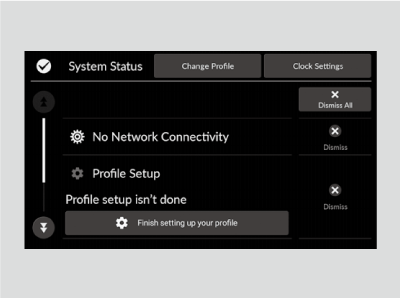
- Detail
-
Profile can be changed only when the vehicle is parked.You can add up to 4 users other than the Owner user and the Guest user.When you add a user, the audio/information screen is loaded under that user.
Switching Users
- Select User Info.
- You can also change users by selecting Profile Settings.
- You can switch users even when the doors are open or unlocked.
- You can also change users by selecting Profile Settings.
- Select Change Profile.
- Select the User you want to use.
- Detail
-
Profile can be changed only when the vehicle is parked.Users with customized security settings can restrict screen operations by selecting the Screen Lock shortcut.The transmitter settings may not be switched when you change Owner user. If this happens, change to a different user and then try switching to the desired user again.
Deleting Users
- Select Profile Settings.
- Select Manage Profile.
- Select Profiles & accounts.
- Select Delete your profile.
- Detail
-
When the profile currently being used is deleted, the audio/information screen is loaded under the Guest user.While using the Owner user, you can delete other user via General Settings → Advanced Settings.
Depending on the version of your OS, the steps for deleting a user may differ from the instructions on this page. Follow the on-screen prompts.
- Recommended topic(s)