Use this page to find repair information for a specific vehicle with a customer complaint or problem.
Information can be found in two ways:
After you have selected your search criteria and clicked the “Search” button, Service Express retrieves all service information related to the keyword or subject.
The publication titles are shown in blue; by clicking on this text, the selected publication opens for viewing and printing.
Search results are displayed on the right side of the screen, grouped by category. Each publication has an icon to the left of the title. The icons represent the publication type. You can determine the publication type by moving the mouse pointer over the icon and leaving it there for a second or two. A pop-up box describes what the icon represents.
After clicking on the link, a new window opens to display the publication that you selected.
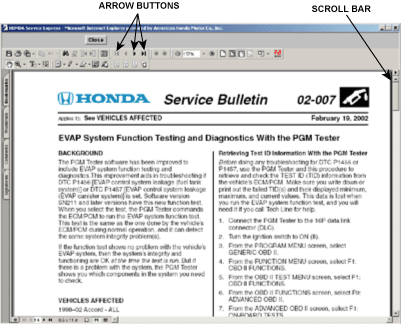
Once the publication is open, you can read through the document and move to different screens by using the scroll bar on the right or by using the arrow buttons on the toolbar at the top of the screen
After reviewing the publication, you can return to the search results by clicking on the “Close” button on the toolbar.

If you select a service manual procedure from the search results, you will see a screen layout similar to the one below, with the text on the left and graphics, when required, on the right.
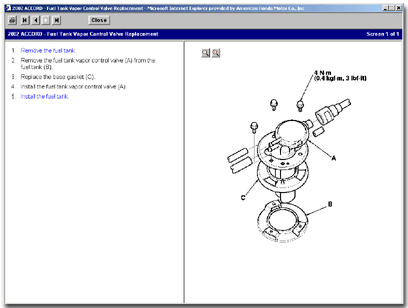
This tool bar is used for most service manual information in Service Express.

You can view a brief description of each of the buttons’ functions by moving the cursor over the button for a few seconds. A pop-up appears describing the button’s function.
To print a service manual procedure, click on the Print Preview button. Once the print preview is open, click “File,” then click “Print.” When the print window opens, choose the number of copies you want, then click “OK.”

To go back to the first screen of a procedure click on this button.

To go back one screen within a procedure, click on this button.

To go to the next step or screen within a procedure, click on this button.

Note: If this button is white and you cannot click on it, look for blue text within the last step on the screen that says “Go to step _” and click on it. This should take you to the next step or screen.
To go to the last screen of a procedure, click on this button.

To close the window and return to your last search results, click on this button.
Blue links within a procedure, when clicked on, take you to the item specified in the text. For example, when you click a blue link for a part number under Required Special Tools, a new window opens with an illustration of that tool. Click the “Close” button to close that window.
When you click on blue text that is a “go to” link (ex: “go to step 3”), you are taken to the step specified in the text.
When you click on blue text that is another procedure like “Remove the alternator,” you are taken to that procedure.
To quickly return to the original procedure, click on the “List of Previous Procedures” box and select the procedure you want to return to. You will be taken back to the exact screen you left.

You can also click on the “previous” arrow and return one screen at a time.
Green links within a procedure, usually the name of a component, open a new window with a list of items directly related to that component. You can click on any link in the new window to view that information or click on the “X” in the upper right corner to close that window.
Purple text within any service manual procedure lets you know that a link (Blue or Green) has been previously viewed. You can click on the purple text to use the link again.
1. After identifying the vehicle by Model and Year, enter your Keyword or words.
A keyword search looks for words that match:
Words in the title of a document or article
System or component name
Symptom name (see below for a list of standard symptom categories)
DTC Codes
Note: Keywords are not case sensitive. Keywords must be spelled correctly to work. However, if you’re not sure how to spell a word, try using a part of the word (for example: immobi, for immobilizer).
2. Choose from the three different types of Keyword search options.
Three Search Options:
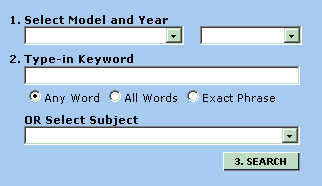
Any Word: Gives you a list of documents that contain AT LEAST ONE of the search terms you type, in any order.
All Words: Gives you a list of documents that contain ALL the search terms you type, in any order.
Exact Phrase: Gives you a list of documents that contain THE EXACT PHRASE you type, in the exact order.
3. Finally, click on the SEARCH button.
What Is The Best Way To Do A Keyword Search?
Keyword search options can be used for different situations, and will return different result sets.
Any Word: This is the default choice and is generally the best option when doing a keyword search. Any Word will return the largest list of documents, so you may need to scroll through to find the desired document.
All Words: This is a good option if you want a more focused and narrowed list of documents. However using All Words may prevent you from finding similar documents with slightly different keywords.
Exact Phrase: Use this when you know an exact phrase in the title of the publication or the procedure you are looking for; keywords must be in the exact order. Generally used when you already know the name of the document.
For best results:
Start with a single keyword. For example, use “evaporative” instead of “evaporative control system.”
Use the shortest form of the word. For example, try “evap” instead of “evaporative.” Note: This does not work if you select the “Exact Phrase” option.
Use the singular form of the word. For example, try “belt,” not “belts.”
In many cases, the vehicle’s symptom will fit into a standard Service Express symptom category. If so, use that category name for the keyword. The standard categories are:
Driveability
Performance
Fluid Leak
NVH (or just “noise,” or “vibration,” or “harshness”)
Wind Noise
Water Leak
Keywords That Work Well
Common system names, for example:
ABS
immobilizer (or immobi)
SRS
evaporative (or evap)
Common part and assembly names, for example:
bumper
hood
filter
trunk
Specific DTCs (Diagnostic Trouble Codes), for example:
P1457
P0740
15-3
12-4
After identifying the vehicle by Model and Year, click on the arrow at the end of the Select Subject drop box, and select the Subject.
If you want to do a broad search across all relevant information, select either the S/M Diagnostic Codes subject, or the S/M Symptom & Repair Info subject. Both of these subjects are designed to give you Service Manual information plus any other relevant information types as listed below.
Select S/M Diagnostic Codes (DTC)
to get all service manual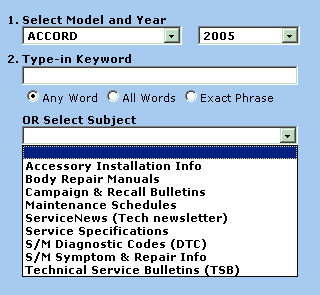
DTC-related advanced diagnostic Info
DTC-related campaign bulletins
DTC-related technical service bulletins
DTC-related ServiceNews articles
Select S/M Symptom & Repair Info to get all service manual symptom and repair procedures, plus
Accessory installation info
Maintenance schedules
Service specifications
Recall and campaign bulletins
Technical service bulletins
ServiceNews articles
Wiring diagrams
The remaining subject categories are limited to just the publications indicated: Accessory Installation Info, Body Repair Manuals, Campaign & Recall Bulletins, Maintenance Schedules, ServiceNews, Service Specifications, and Technical Service Bulletins.