


Adjusting the Clock
You can adjust the time in the clock display with the power mode in ON.
- Detail
-
The clock is automatically updated through the audio system.You can also adjust the clock by touching the clock displayed in the header area of the audio/information screen.
-
Touch the clock on the screen.
The clock setting screen appears. -
Select Set Date & Time.
-
Select Automatic Date & Time, then select Off.
-
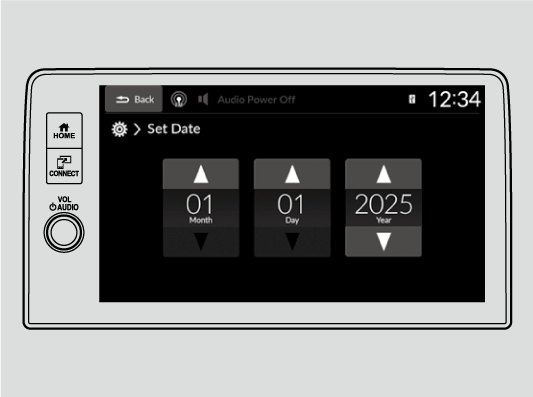
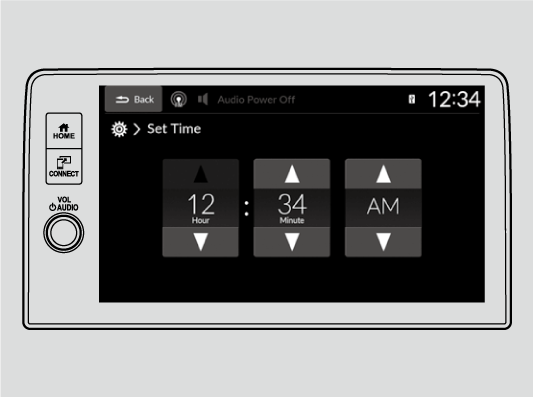
Select Set Date or Set Time.
-
Adjusting the dates, hours and minutes by selecting ▲ or ▼.
-
Select
 Back icon to set the time.
You can customize the clock display to show the 12 hour clock or 24 hour clock.
You can customize the date display.
-
Adjusting the Time
-
- Press the
 button.
 - Select General Settings.
- Select System.
- Select Date & Time.
- Select Set Date & Time.
- Select Automatic Date & Time, then select Off.
- Press the
-
-
To adjust date:
- Select Set Date.
- Select ▲ or ▼.
- Select Back icon to set the date.
To adjust time:- Select Set Time.
- Select ▲ or ▼.
- Select Back icon to set the time.
-
- Recommended topic(s)