
Bluetooth® HandsFreeLink®
Bluetooth® HandsFreeLink® (HFL) allows you to place and receive phone calls using your vehicle’s audio system without handling your cell phone. Select the Phone icon when your phone is connected to the system wirelessly.
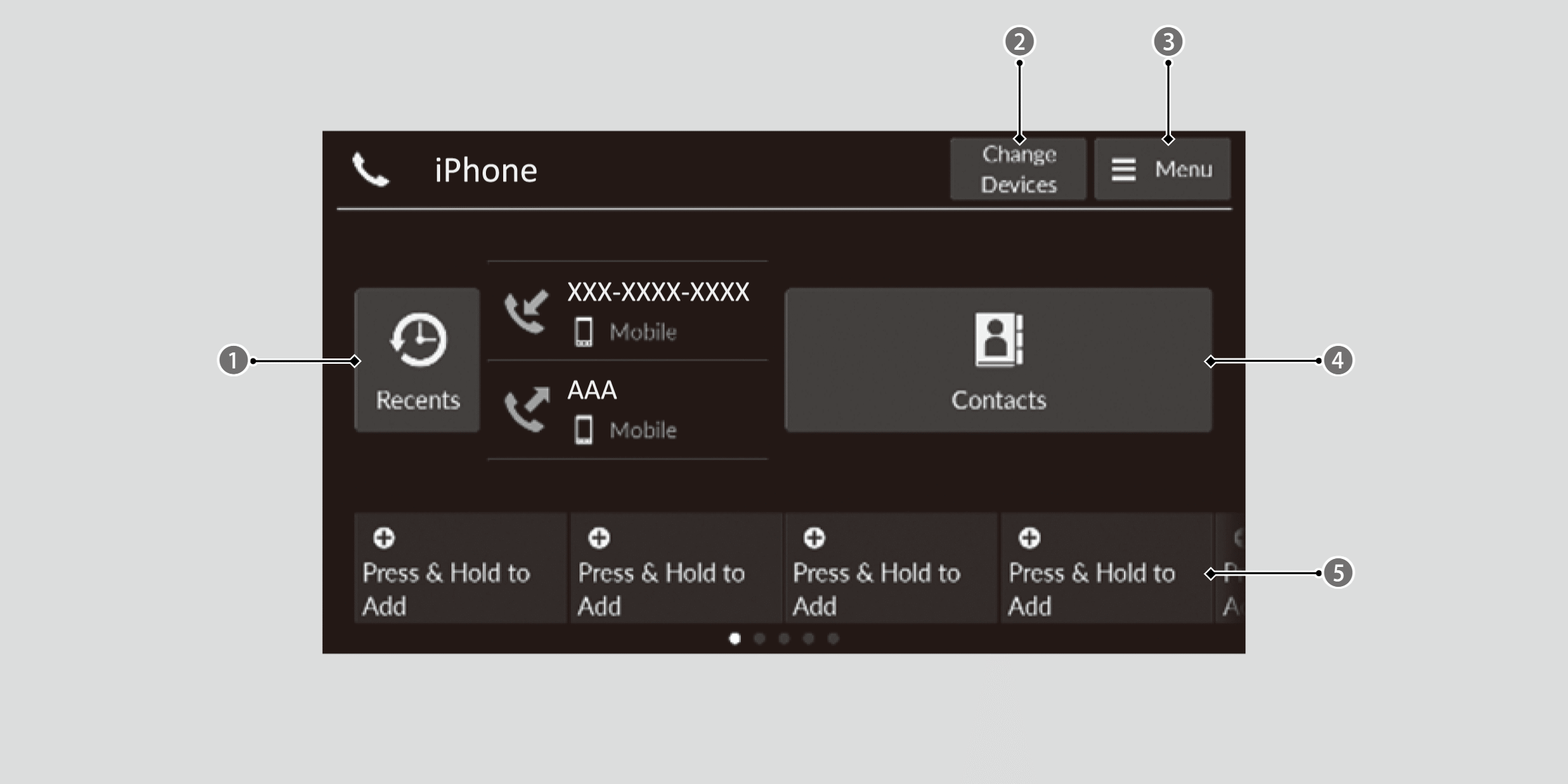

Recents Icon

Change Devices Icon

Menu Icon

Contacts Icon

Favorite Contacts Icons
- To use the system, the Bluetooth setting must be On.
- Bluetooth® Wireless Technology
The Bluetooth® word mark and logos are registered trademarks owned by Bluetooth SIG, Inc., and any use of such marks by Honda Motor Co., Ltd., is under license. Other trademarks and trade names are those of their respective owners. - HFL Limitations
An incoming call on HFL will interrupt the audio system when it is playing. It will resume when the call is ended. - When you select a name from the list in the cellular phonebook, you can see a category icon. The icons indicate what types of numbers are stored for that name.
- On some phones, it may not be possible to import the category icons to the system.
- Depending on the connected cell phone, some features may not be available.
HFL Status Display
The audio/information screen notifies you when there is an incoming call.
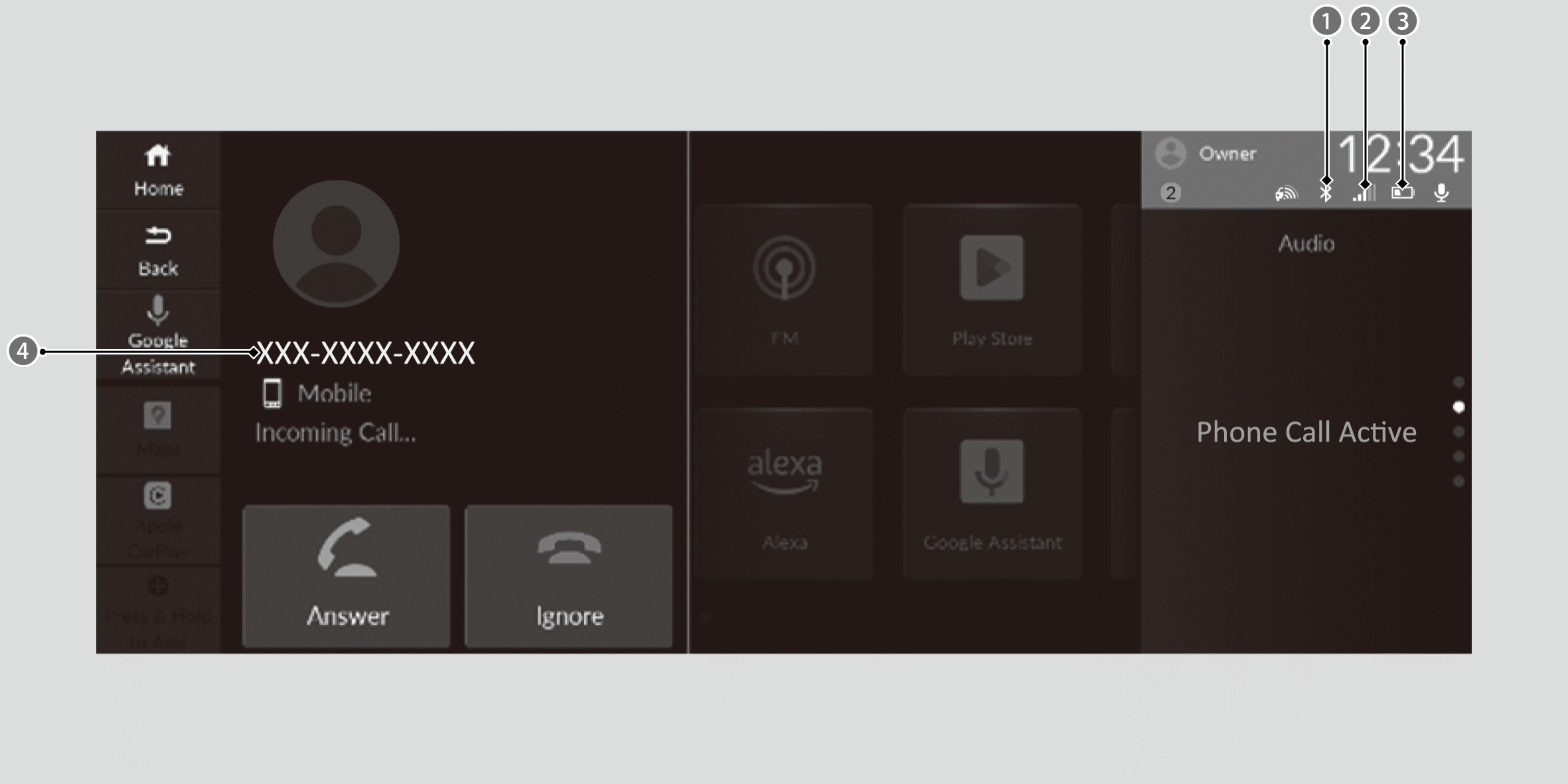
Bluetooth® Indicator
Appears when your phone is connected to HFL.
Signal Strength
Battery Level Status
Name saved in contacts/Caller’s Number (if not registered)
- The information that appears on the audio/information screen varies between phone models.
Favorite Contacts
To add a favorite contact
- Select
 (Home) icon.
 - Select Phone.
- Select and hold Press & Hold to Add.
- Select From Recents, From Contacts, or Using Enter Number.
- Select a phone number.
- Input number, and select Enter.
To edit a favorite contact
- Select(Home) icon.
- Select Phone.
- Select and hold a favorite contact.
- Select Edit Favorites.
- To delete a favorite contact, select Remove Favorite.
- Select a setting you want.
- Select Enter or select type.
Add a favorite contact to homepage
- Select(Home) icon.
- Select Phone.
- Select and hold a favorite contact.
- Select Add to Home.
Making a Call
You can make calls by inputting any phone number, or by using the imported recent calls, favorite contacts, and contacts entries.
To make a call using the imported phonebook
- Select(Home) icon.
- Select Phone.
- Select Contacts.
- Select a name.
- You can sort by First Name or Last Name. Select the icon on the upper right of the screen.
- Select a number.
- Dialing starts automatically.
To make a call using a phone number
- Select(Home) icon.
- Select Phone.
- Select Menu.
- Select Keypad.
- Select a number.
- Use the keyboard on the touch screen for entering numbers.
- Select Call.
- Dialing starts automatically.
To make a call using the call history
Call history is stored by All, Dialed, Missed, and Received.
- Select(Home) icon.
- Select Phone.
- Select Recents.
- You can sort by All, Dialed, Missed, or Received. Select the icon on the upper right of the screen.
- Select a number or contact name.
- Dialing starts automatically.
The call history appears only when a phone is connected to the system.
To make a call using a favorite contacts entry
- Select(Home) icon.
- Select Phone.
- Select a desired favorite contact.
- Dialing starts automatically.
Receiving a Call
When there is an incoming call, an audible notification sounds (if activated) and the Incoming Call… screen appears.
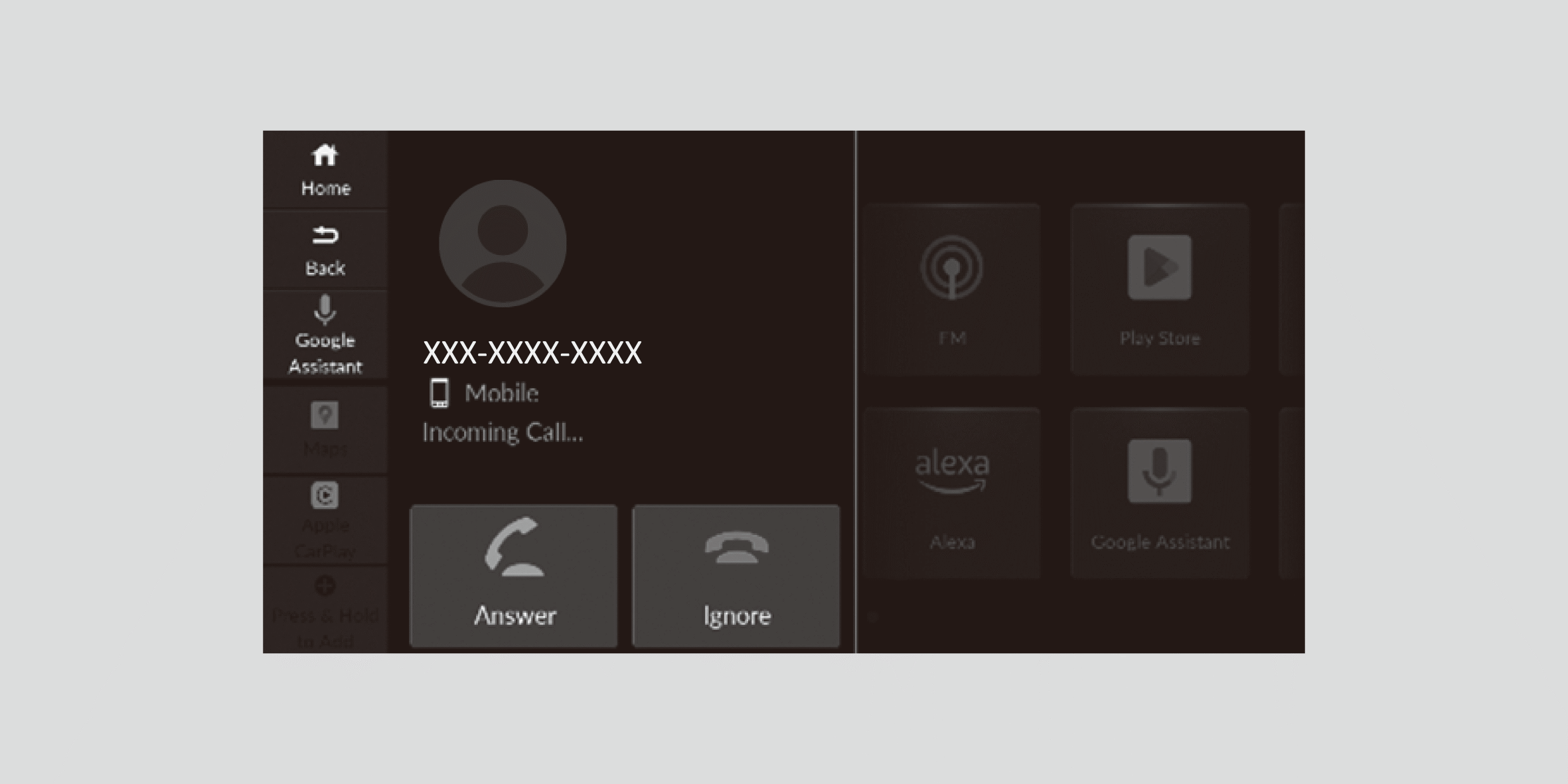
To answer the call:
Select the Answer icon.
You can also answer the call using the left selector wheel roll up or down to select (Answer) on the driver information interface.
To decline or end the call:
Select the Ignore icon.
You can also ignore the call using the left selector wheel roll up or down to select (Ignore) on the driver information interface.
Call Waiting:
- Select(Answer) to put the current call on hold to answer the incoming call.
- Selectusing the left selector wheel to return to the current call.
- Select(Ignore) to ignore the incoming call if you do not want to answer it.
- Selectif you want to hang up the current call.
Options During a Call
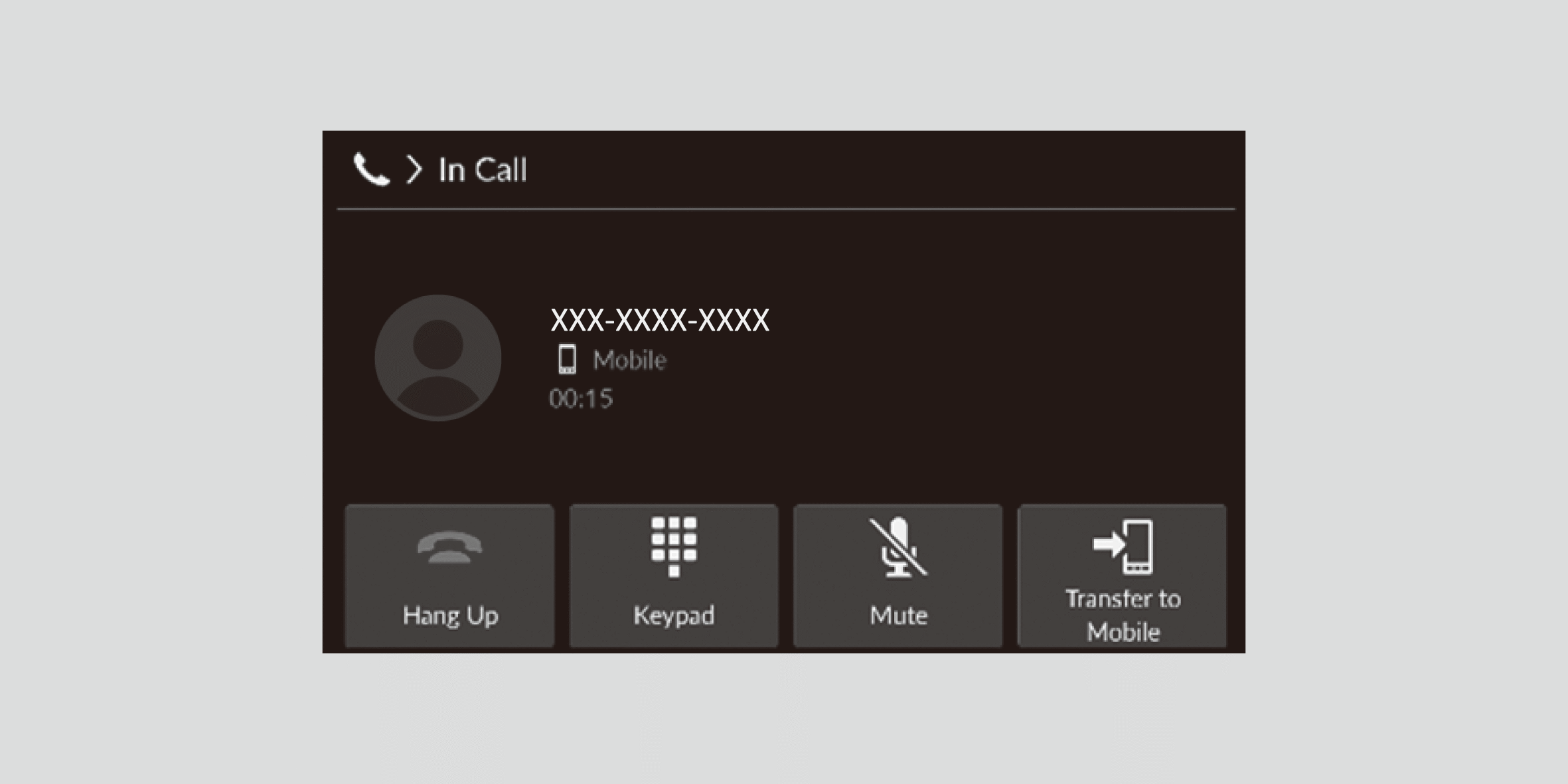
The following options are available during a call.
- Hang Up: End the call. Calls can also be ended from the Driver Information Interface by moving the left selector wheel up and down.
- Keypad: Send numbers during a call. This is useful when you call a menu-driven phone system.
- Mute: Mute your voice.
- Transfer to Mobile: Transfer a call from the system to your phone.
Phone Menu Screen
By selecting Menu and select a settings item, you can change the Bluetooth® HandsFreeLink® settings.
The following settings items can be set.
- Keypad: Enter a phone number to dial.
- Latest Call History: Set whether the history shortcut is displayed in the phone screen.
- Auto Sync Phone: Set phonebook and call history data to be automatically imported when a phone is paired to HFL.
- Auto Phone Call Transfer: Set calls to automatically transfer from your phone to HFL when you enter the vehicle.
- Ringtone: Select a fixed ringtone or the one from the connected cell phone.