


Android AutoTM
If you connect an AndroidTM phone to the system, via USB port or wirelessly, and the  (Connect) button is pressed or the Android Auto icon is selected, you can operate Android Auto on the audio/information screen.
We recommend that you complete this tutorial while safely parked before using
Android Auto.
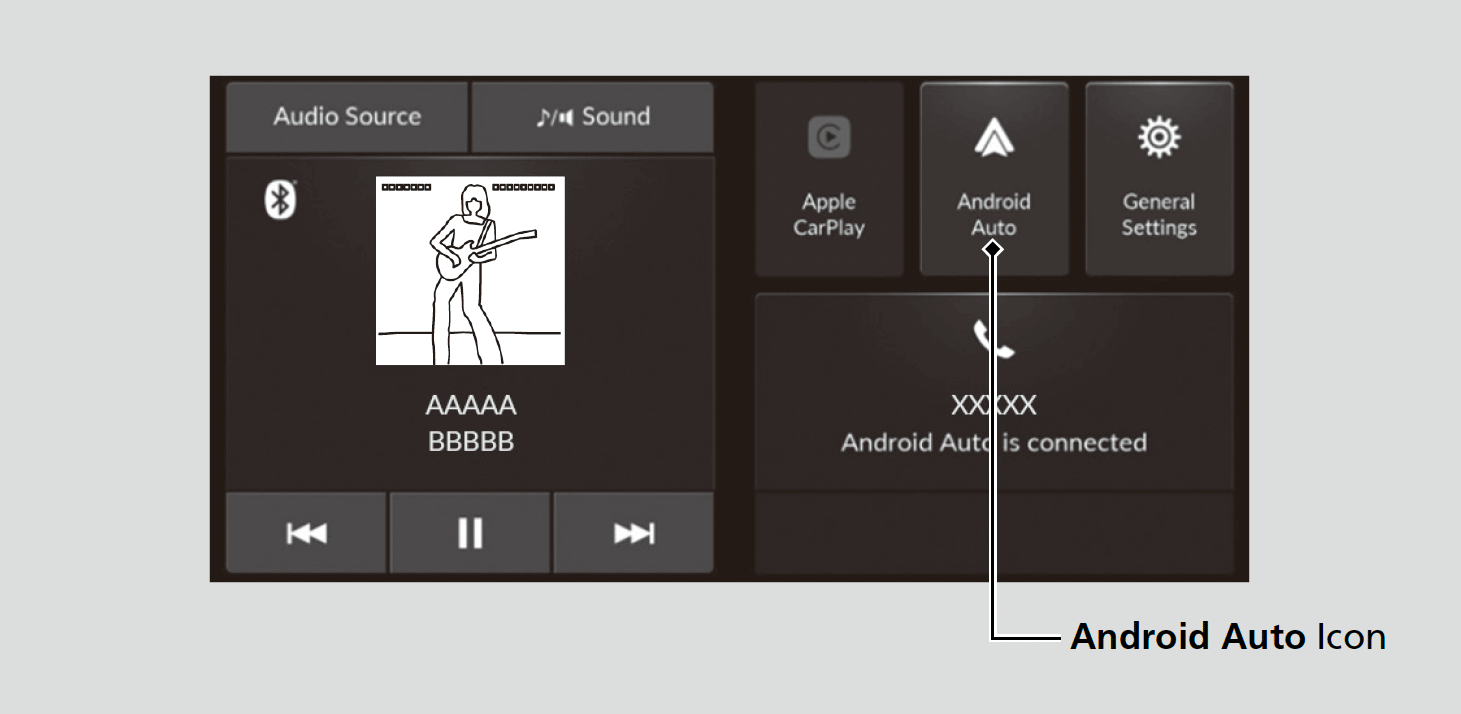
- Detail
-
We recommend that you update Android OS to the latest version when using Android Auto.
Bluetooth® A2DP cannot be used while your phone is connected to Android Auto.To use Android Auto on a smartphone with Android 9.0 or earlier, you need to download the Android Auto app from Google Play to your smartphone.Park in a safe place before connecting your Android phone to Android Auto and when launching any compatible apps.When your Android phone is connected to Android Auto, it is not possible to use the Bluetooth® Audio or Bluetooth® HandsFreeLink®.
However, other previously paired phones can stream audio via Bluetooth® while Android Auto is connected.
Apple CarPlay and Android Auto cannot run at the same time.Android and Android Auto are trademarks of Google LLC.For details on countries and regions where Android Auto is available, as well as information pertaining to function, refer to the Android Auto homepage.Screens may differ depending on the version of the Android Auto app you are using.Android Auto Operating Requirements & LimitationsAndroid Auto requires a compatible Android phone with an active cellular connection and data plan. Your carrier’s rate plans will apply.Changes in operating systems, hardware, software, and other technology integral to providing Android Auto functionality, as well as new or revised governmental regulations, may result in a decrease or cessation of Android Auto functionality and services. Honda cannot and does not provide any warranty or guarantee of future Android Auto performance or functionality.It is possible to use 3rd party apps if they are compatible with Android Auto. Refer to the Android Auto homepage for information on compatible apps.
Only initialize Android Auto when you are safely parked. When Android Auto first detects your phone, you will need to set up your phone so that auto pairing is possible. Refer to the instruction manual that came with your phone.You can also use the method below to set up Android Auto:
Press the button
  Select General Settings Connections
  icon.Use of user and vehicle informationThe use and handling of user and vehicle information transmitted to/from your phone by Android Auto is governed by Google’s Privacy Policy.
Android Auto Menu
For details on available applications, please refer to the Android Auto homepage.
Apps displayed on your screen can be changed with your smartphone.
Select the Honda icon on the Android Auto menu screen to go back to the home
screen.
Connect Android Auto Using the USB Cable
- Connect the Android phone to the USB port using the USB cable.
- The confirmation screen will be displayed.
- Select Yes.
- If you do not want to connect Android Auto, select No.
You may change the consent settings under the Connections menu.
Connect Android Auto Wirelessly
- Press the button.
- Select Android Auto.
- Select Connect New Device.
- Pair the Android phone to the vehicle’s Bluetooth® HandsFreeLink® (HFL) system.
- Select Yes.
- If your Android phone asks for permission to accept an Android Auto connection, accept to connect.
Operating Android Auto with Google Assistant
Press the  (Talk) button to talk to Google Assistant.
Press again to deactivate voice recognition.
- Detail
-
Below are examples of commands you can give with Google Assistant:
- Reply to text.
- Call my wife.
- Navigate to Honda.
- Play my music.
- Send a text message to my wife.
- Call flower shop.
For more information, please refer to the Android Auto homepage.
- Recommended topic(s)