


Auto Score Mode
This mode is designed for everyday driving situations.
When you turn on Honda LogR, Auto Score mode is selected automatically.
Refer to the commentary in the customize menu for more details.
- Detail
-
When you want to Auto Score mode set to OFF, you can customize on the Settings screen.
You can get data for up to 99:59.99 continuously. After 99:59.99 elapsed, getting data will be started newly.
Saving Auto Score History
-
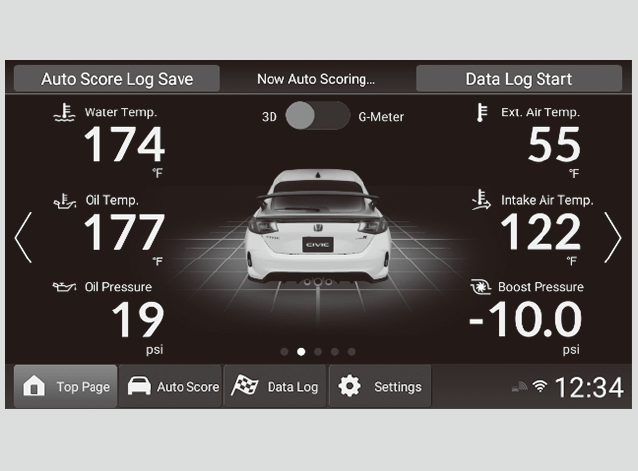
Select Auto Score Log Save at the top of the performance monitor screen.
- Saving will be canceled if you switch to a screen other than the performance monitor screen before saving is completed.
-
- Detail
-
Auto Score history is stored even if the power mode is in VEHICLE OFF.
Checking Auto Score History
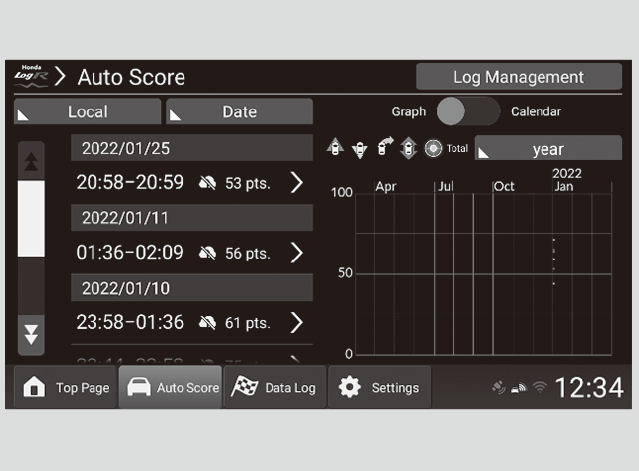
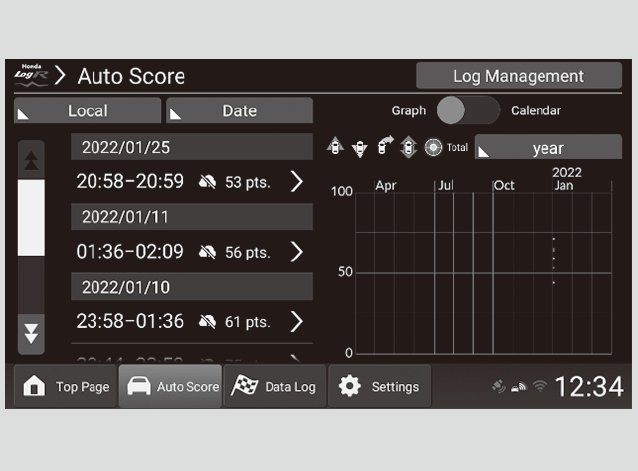
By selecting Auto Score at the bottom of the performance monitor screen, you can check previously recorded Auto Score data. On the Auto Score history screen, a graph showing the evaluation transition for each situation, such as acceleration and deceleration, is displayed. Also, you can search for scores by date, and data can be sorted by date and score.
-
Select Auto Score at the bottom of the performance monitor screen.
You can search by date.
- Select Calendar at the top of the screen.
- Select a date.
You can sort your history.
- Select Date.
- Select a category to sort the data by.
You can change the data storage location to Local/My Server.
- Select Local.
- Select a data storage location from Local/My Sever.
-
- Detail
-
The date and the 12/24 hour display format matches the main audio display settings.
Refer to the commentary in the customize menu for more details on how the scores are generated.
If the date changes while driving, the corresponding data will be displayed under the earlier date.
Checking Detailed Auto Score History
-
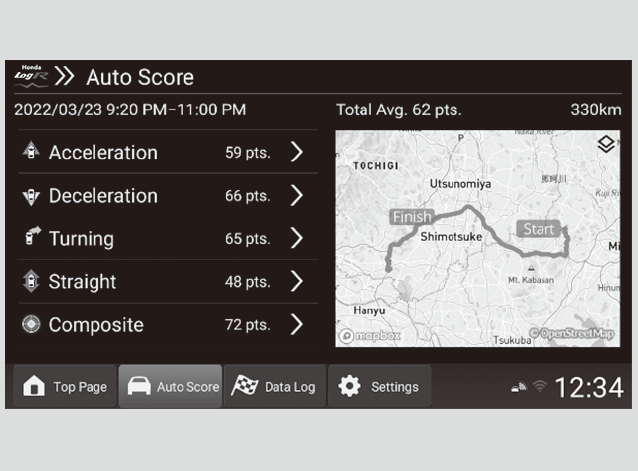
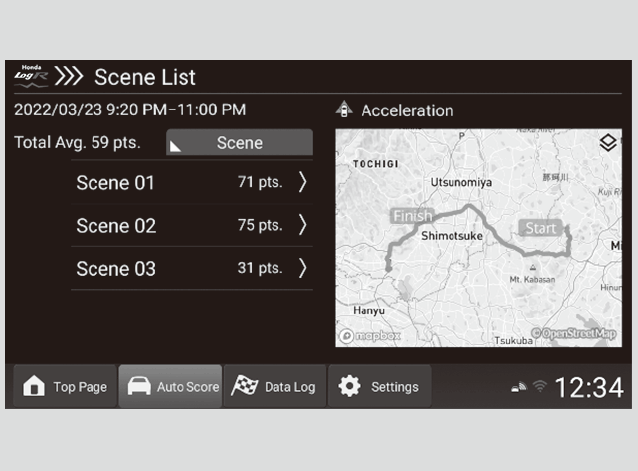
You can view more details by selecting a history item.
You can view separate driving records for each performance item that has been scored.
Select the date and time you want to view.
- Separate scores and routes are displayed corresponding to driving performance in areas such as acceleration and deceleration.
- You can view more detailed information by selecting an area of performance.
-
-
You can sort your history.
- Select Scene.
- Select a category to sort the data by.
-
- Detail
-
Refer to the commentary in the customize menu for more details on how the scores are generated.
By selecting the icon on the map, you can switch between map view and aerial view.
Checking the Score Log Details for Auto Score History
-
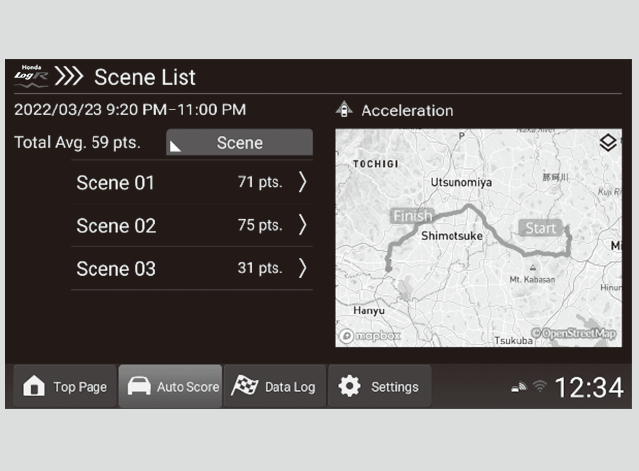
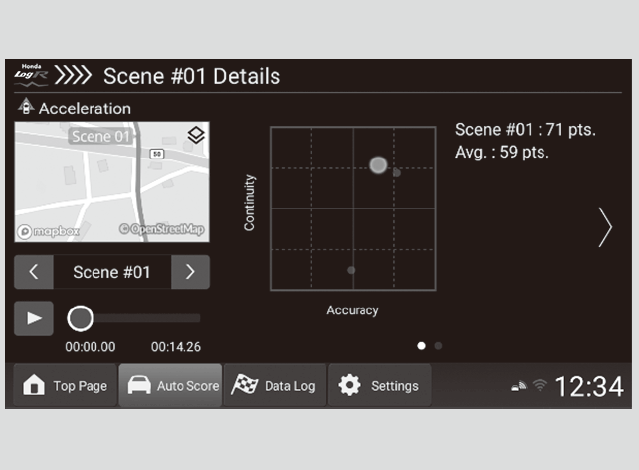
You can view more detailed information by selecting a scene for a given performance area.
By selecting the play icon, you can also view a time progression of the data.
-
-
You can enlarge the graph by selecting it. After it has been enlarged, you can adjust the scale. The vertical axis is adjusted by pinching in or out on the screen, and the horizontal axis is adjusted by selecting the icons.
-
- Detail
-
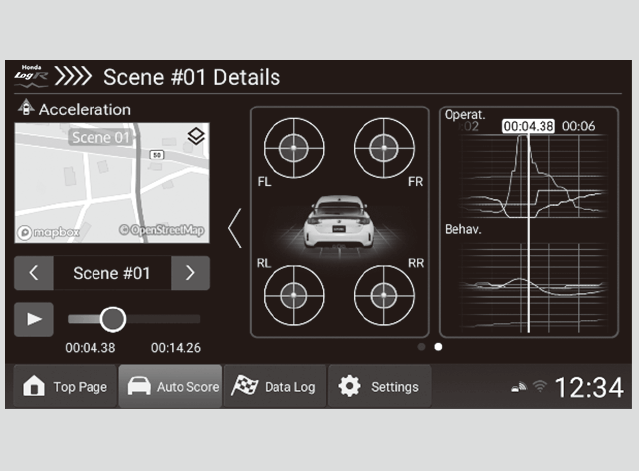
Refer to the commentary in the customize menu for more details on how the scores are generated.
By selecting the icon on the map, you can switch between map view and aerial view.You can enlarge a tire friction circle by selecting it.By enlarging the tire friction circle display, the vehicle displayed in the center of the screen can be changed to the G-meter which displays the direction of the force applied on the vehicle.
Deleting Auto Score History
-
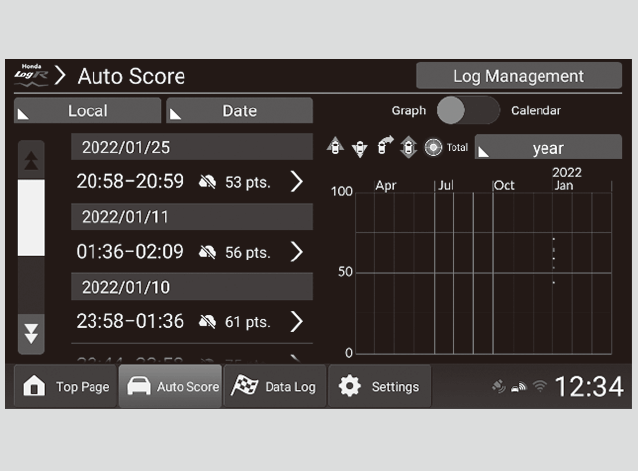
- Select Auto Score at the bottom of the performance monitor screen.
- Select Log Management.
-
-
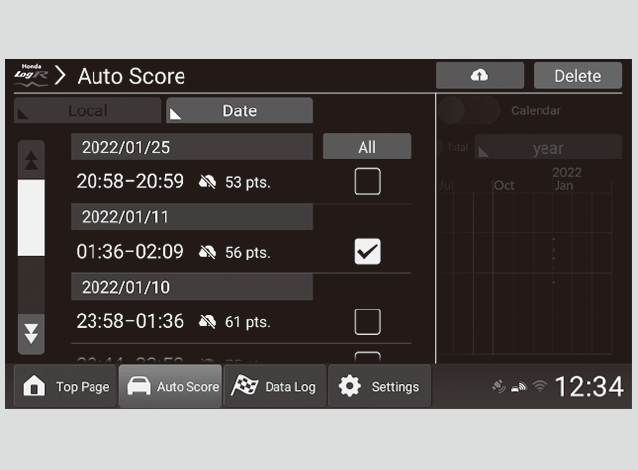
- Select the data you want to delete, then select Delete at the top of the screen.
-
Uploading Auto Score History
You can upload Auto Score history to the server.
-
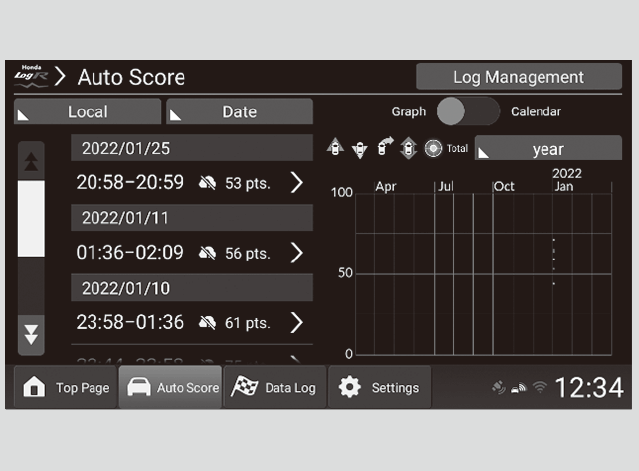
- Select Auto Score at the bottom of the performance monitor screen.
- Select Log Management.
-
-
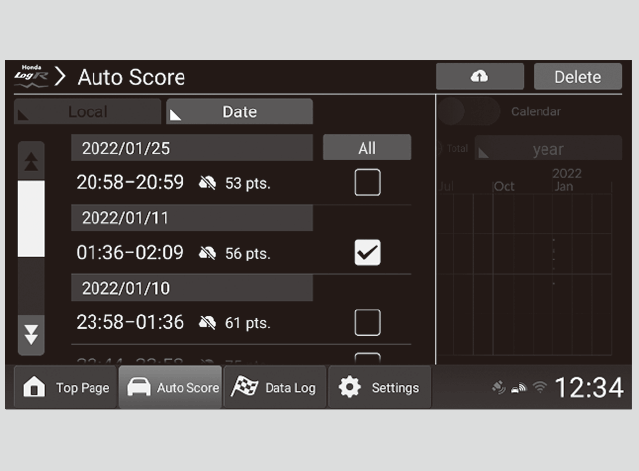
- Select the data you want to upload, then select
 at the top of the screen.
- Select the data you want to upload, then select
-
- Detail
-
If the data storage location is Local, is displayed.
- Recommended topic(s)