


Customize
By selecting Settings at the bottom of the performance monitor, you can change the settings for various features.
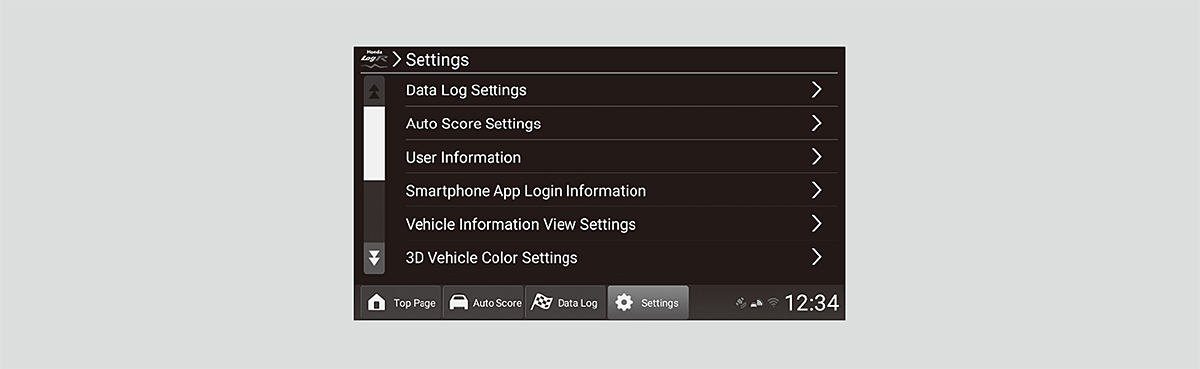
Settings
|
Setting Item
|
Overview
|
Options
|
||
|---|---|---|---|---|
|
Data Log Settings
|
Lap Timer Settings
|
You can set how the data logs’ lap measurements are performed.
|
Auto*1/Manual
|
|
|
Location to use
|
You can select saved locations.
Refer to the page below for more details.
|
—
|
||
|
My Location
|
Register new location
|
You can enter and save a location name.
You can save by the LAPs start and end line on the map.
Refer to the page below for more details.
|
—
|
|
|
Registered location
|
||||
|
Auto Score Settings
|
You can set the Auto Score on or off.
|
ON*1/OFF
|
||
|
User information
|
Displays your User ID, nickname, and comment.
|
—
|
||
|
Smartphone App Login Information
|
Displays User ID and PIN for use with the smartphone app.
|
—
|
||
- Default setting
|
Setting Item
|
Overview
|
Options
|
||
|---|---|---|---|---|
|
Vehicle Information View Settings
|
Center Display indication settings
|
You can select six items to be displayed in the performance monitor and instrument panel. These items can be rearranged by selecting ▲ or ▼, or by using the Drag & Drop function.
|
Water Temp.*1/Oil Temp.*1/Oil Pressure*1/Ext. Air Temp.*1/Intake Air Temp.*1/Boost Pressure*1/Steering Angle/Accel. Ped. Pos./Brake Pressure/Clutch Ped. Pos./Yaw Rate/Atmos. Pressure
|
|
|
Meter indication item settings
|
Water Temp.*1/Oil Temp.*1/Oil Pressure*1/Ext. Air Temp.*1/Intake Air Temp.*1/Boost Pressure*1/Steering Angle/Accel. Ped. Pos./Brake Pressure/Clutch Ped. Pos./Yaw Rate/Atmos. Pressure
|
|||
|
Limit settings
|
Water Temp.
|
You can set the limit values for vehicle information displayed in the performance monitor and instrument panel.
|
OFF*1
80 to 120 (1°C increments)
If units are set to Fahrenheit
170 to 250 (1°F increments).
|
|
|
Oil Temp.
|
OFF*1
90 to 130 (1°C increments)
If units are set to Fahrenheit
190 to 270 (1°F increments).
|
|||
|
G-Meter max scale settings
|
You can change the operating sensitivity of the G-meter and 3D vehicle display.
|
0.5G*1/1.5G
|
||
- Default setting
|
Setting Item
|
Overview
|
Options
|
||
|---|---|---|---|---|
|
3D Vehicle Color Settings
|
You can set and display vehicle’s color information. You can select the vehicle color, and the changes will reflect on the 3D vehicle display.
|
Vehicle color
|
||
|
Log Management
|
Import
|
You can import files generated by the in-vehicle apps export function.
When multiple files are in the image folder, a timestamp is included in new file names.
|
—
|
|
|
Export
|
You can export data stored on the in-vehicle app (driving logs and setting information) to a USB memory stick.
|
—
|
||
|
Delete log
|
You can delete data stored on the in-vehicle app (drive logs and setting information).
|
—
|
||
|
Log automatic deletion settings
|
Data Log
|
You can set whether to automatically delete logs in Data Log mode and Auto Score mode.
|
ON/OFF*1
|
|
|
Auto Score
|
ON/OFF*1
|
|||
- Default setting
|
Setting Item
|
Overview
|
Options
|
||
|---|---|---|---|---|
|
Commentary
|
Friction circle
|
You can see how scores are generated for tire friction circles.
|
—
|
|
|
Data Log
|
You can check the Data Log mode Overview and see how scores are generated for
G Average/Balance/Friction circle/Saturation/Variation. |
—
|
||
|
Auto Score
|
You can check the Auto Score mode Overview and see how scores are generated for Acceleration, Deceleration, Turning, Straight, and Composite.
|
—
|
||
|
Tutorial
|
You can re-display the explanations from your first time using Honda LogR.
|
—
|
||
|
User Consent
|
Displays the user consent for the in-vehicle app.
|
—
|
||
|
License information
|
Displays OSS license used by the in-vehicle app.
|
—
|
||
|
Mapbox License
|
Displays the Mapbox license used by the in-vehicle app.
|
—
|
||