


Data Log Mode
This mode is designed for track driving. In addition to the features from Auto Score mode, you can also record lap time data etc. By uploading data to the server, you can compare it with other user’s data.
Refer to the commentary in the customize menu for more details.
- Detail
-
You can get Log data for up to 99:59.99 continuously. After 99:59.99 elapsed, getting data will be started newly.
Starting and Stopping Data Log Mode
-
- Select Data Log Start at the top of the performance monitor screen.
-
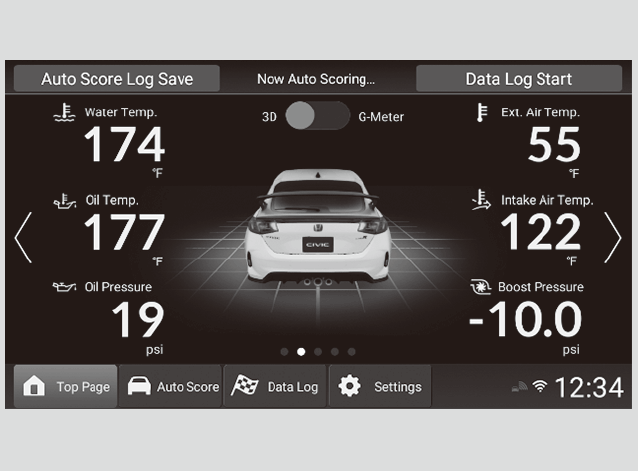
-
- Configure location settings, then select Data Log Start.
- By selecting Data Log Stop at the top of the performance monitor screen, you can stop the Data Log. After stopping, the driving data for this log will be displayed.
- Configure location settings, then select Data Log Start.
-
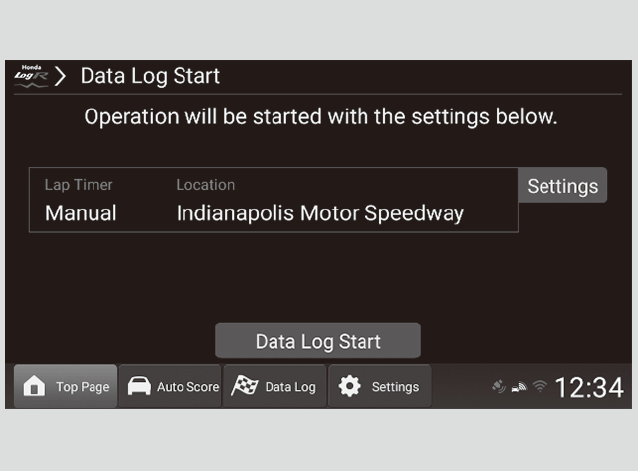
- Detail
-
When Data Log Mode is activated, the Lap Timer Settings can be turned Auto and manual.
If the Lap Timer Settings is Auto, lap times cannot be recorded manually.
Set location
You can set a location from a list of previously saved locations.
-
- Select Settings at the bottom of the performance monitor screen.
- Select Data Log Settings.
- Select Location to use.
- You can select Preset or My Location.
- Select a location to use.
- If you want to select a location in a different region, select Country: All at the top right corner of the Location List screen, then change the location.
-
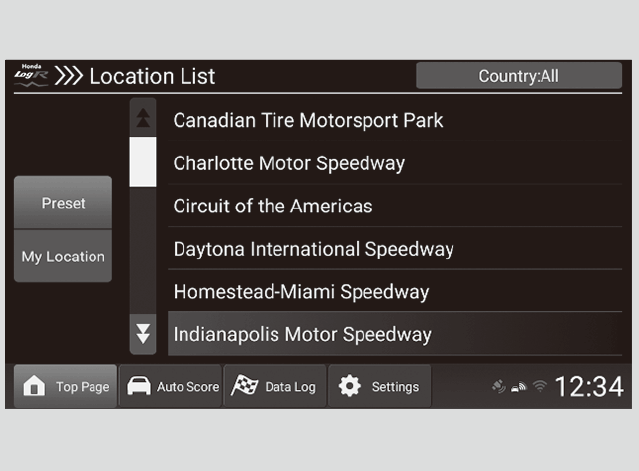
-
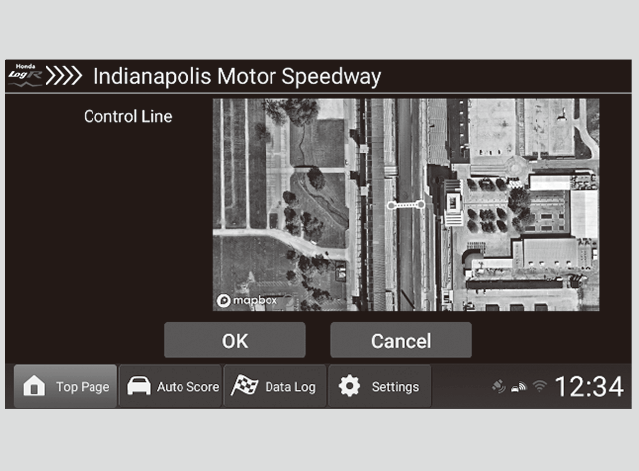
- Confirm a Lap line on the map, then select OK.
- If you select Cancel, the system will return to the Location List screen.
- If you pass in the direction of the arrow on the Lap line, the Lap time will be measured.
- Confirm a Lap line on the map, then select OK.
-
My location settings
You can save a new set location.
-
- Select Settings at the bottom of the performance monitor screen.
- Select Data Log Settings.
- Select My Location.
- Select Register new location.
- If you select a registered location, the Location Edit screen is displayed, and then location names can be changed.
If you select Delete, you can delete saved locations.
- If you select a registered location, the Location Edit screen is displayed, and then location names can be changed.
-
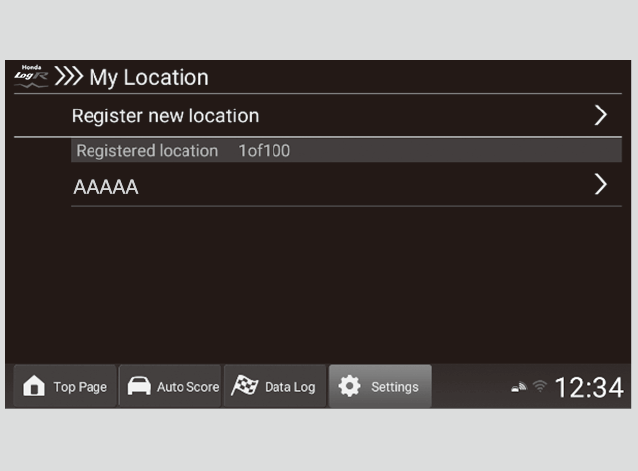
-
- Select Edit.
- If you select Cancel, the system will return to the My Location screen without saving.
- Select Edit.
-
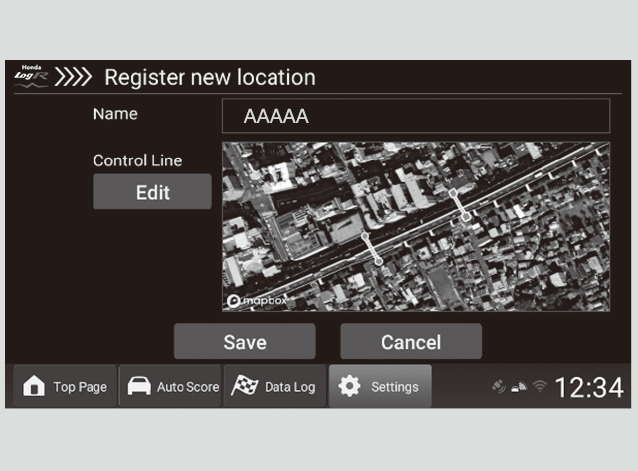
-
- Search for the point which you want to register on the map, then select Next.
- Set the start and end lines for Automatic LAP Measurement.
- If you want to set the end line to a different point from the start line, select Next, then set a point for the end line.
- If you pass in the direction of the arrow on the Lap line, the Lap time will be measured.
-
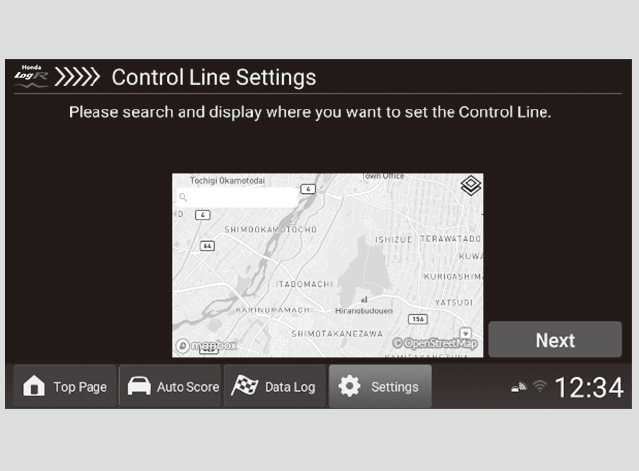
-
- Select Done.
-
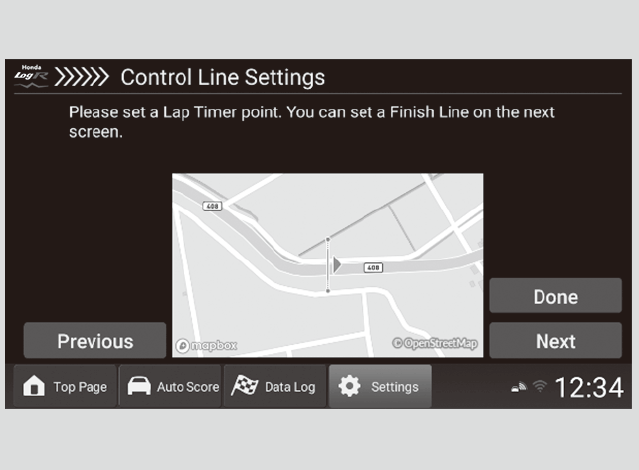
-
- Select Save.
- If you select Cancel, the system will return to the My Location screen without saving.
- Select Save.
-
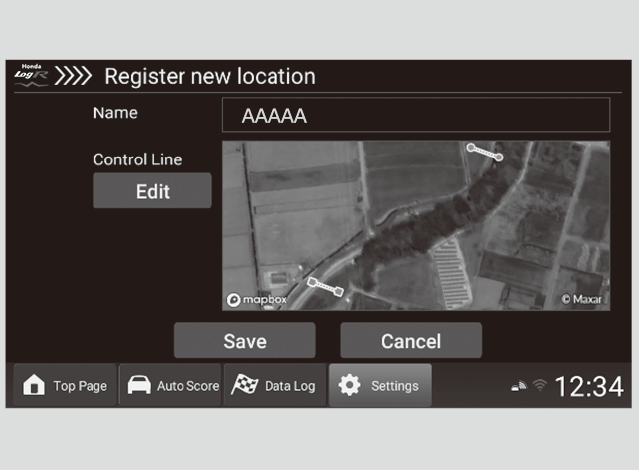
- Detail
-
The maximum for a location name is 19 characters.A maximum of 100 locations can be saved.By selecting the icon on the map, you can switch between map view and aerial view.Automatic lap measurement uses a pre-set point start and end line. Please use the map to set your own points for the start and end lines.Only while data storage location is set to Local, the next Lap time will start to be measured when you cross a set finish line.You can delete unnecessary Lap times.
Checking Data Log History
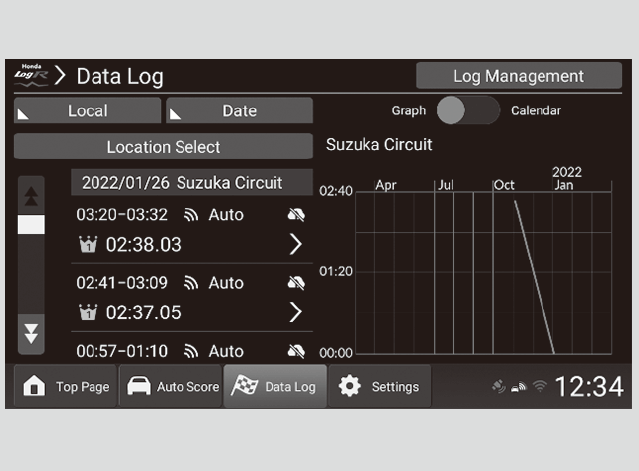
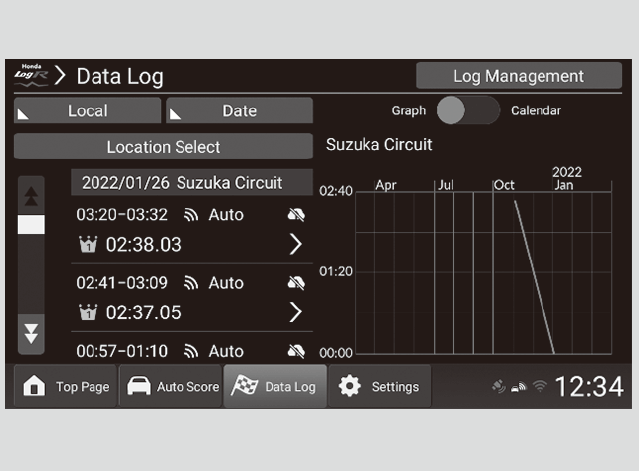
You can check previously saved data logs by selecting Data Log at the bottom of the performance monitor screen. On the Data Log history screen, a graph showing the transition for a Lap time is displayed. Also, you can search for Log data by place and date, and you can sort it by date and best lap time.
-
Select Data Log at the bottom of the performance monitor screen.
You can search by location.
- Select Location Select.
- Select the location you want to be displayed.
You can search by date.
- Select Calendar at the top of the screen.
- Select a date.
You can sort the history.
- Select Date.
- Select a category to sort the data by.
- If a location has not been selected, you cannot sort by best lap time.
Changing data storage location.
- Select Local.
- Select a data storage location from Local/My Server/Other Server.
-
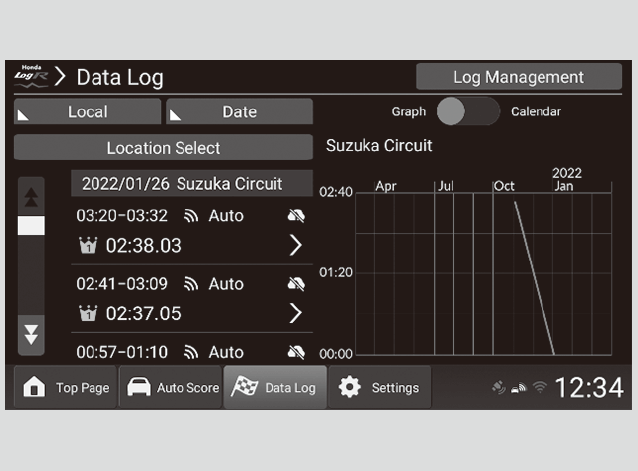
- Detail
-
Refer to the commentary in the customize menu for more details on how the scores are generated.
LAP measurement setting (Auto/Manual), location name, and best lap time are displayed.If the date changes while driving, the corresponding data will be displayed under the earlier date.
Checking Detailed Data Log History
-
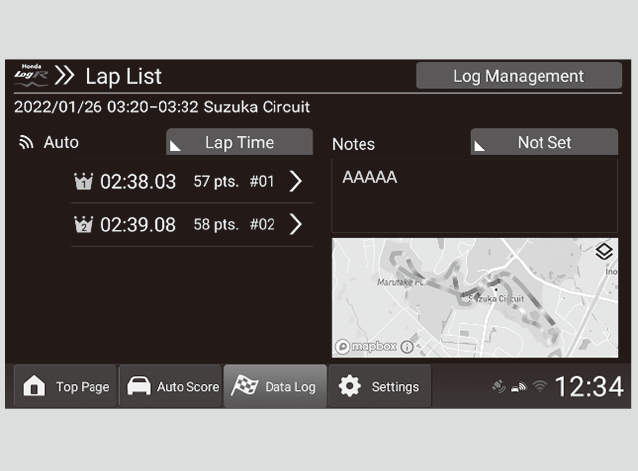
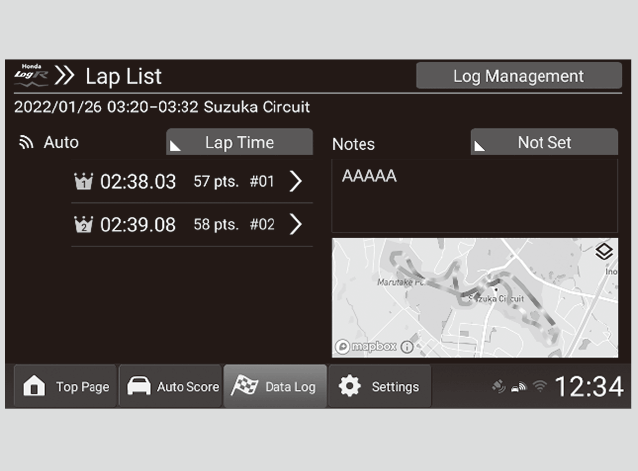
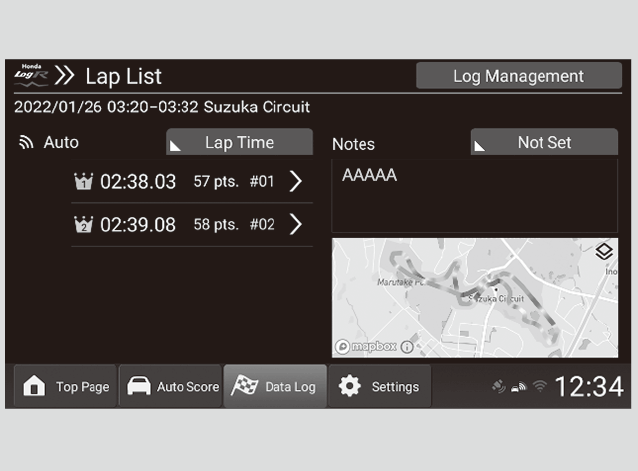
When you select the history item you want to view, previous LAPs are displayed in a list.
In the LAP list, each lap has its time, the Auto/Manual setting, and best lap times’ heat map displayed. Additionally, you can leave comments and enter weather information for the selected day in your history. User information comments can be viewed in other user's history.
-
-
You can switch between sorting the list by LAP time or LAP number.
Sorting the list.
- Select Lap Time.
- Select a category to sort the data by.
-
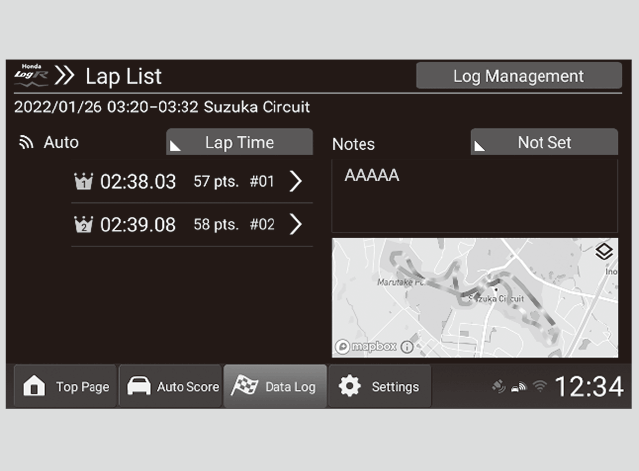
- Detail
-
Refer to the commentary in the customize menu for more details on how the scores are generated.
The heat map displays in different colors corresponding to both the degree of acceleration and brake pressure.At points where both the accelerator and brake are pressed at the same time, only the brake information is displayed.By selecting the icon on the map, you can switch between map view and aerial view.The maximum for a condition memo is 45 characters.
Checking Detailed Lap Data in Data Log History
-
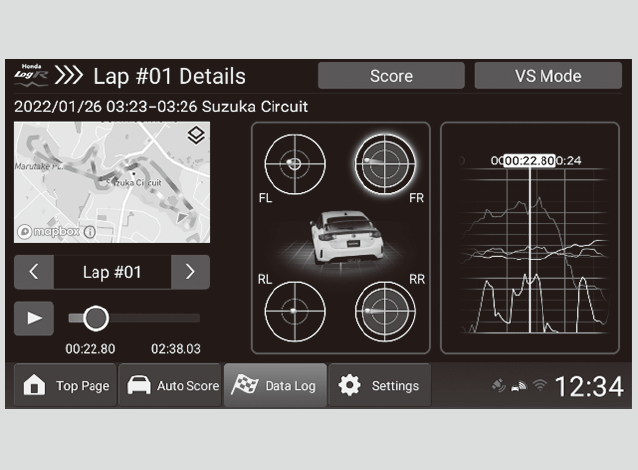
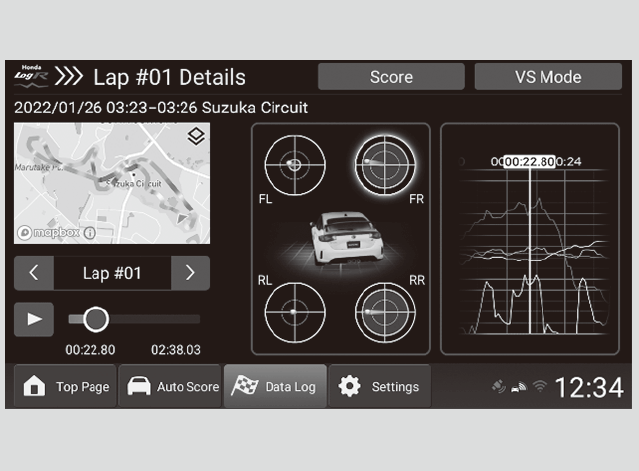
By selecting an individual lap, you can view detailed driving data for that lap. By selecting the play icon, you can also view a time progression of the data.
You can enlarge a tire friction circle by selecting it.
-
-
You can enlarge the graph by selecting it. After it has been enlarged, you can adjust the scale of the horizontal and vertical axes. Also, you can change which items are displayed.
Changing items on the graph display.
- Select Select Items.
- Select the items you want to be displayed.
- You can select up to six categories.
-
-
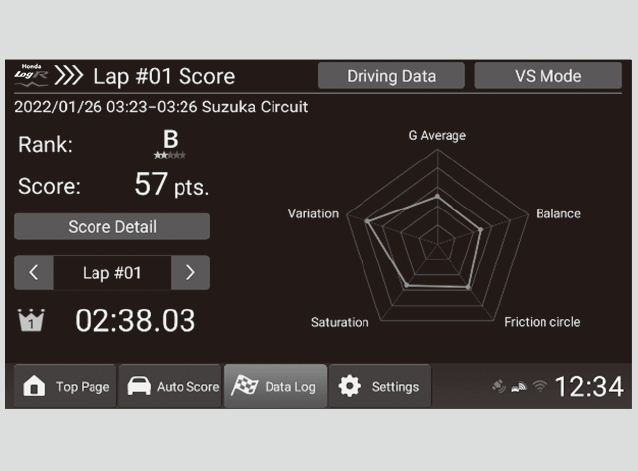
Additionally, by selecting Score, you can view the score of the Lap data and the rank corresponding to it.
-
- Detail
-
Refer to the commentary in the customize menu for more details on how the scores are generated.
The heat map displays in different colors corresponding to both the degree of acceleration and brake pressure.At points where both the accelerator and brake are pressed at the same time, only the brake information is displayed.By selecting the icon on the map, you can switch between map view and aerial view.
Uploading/Deleting Data Log History
-
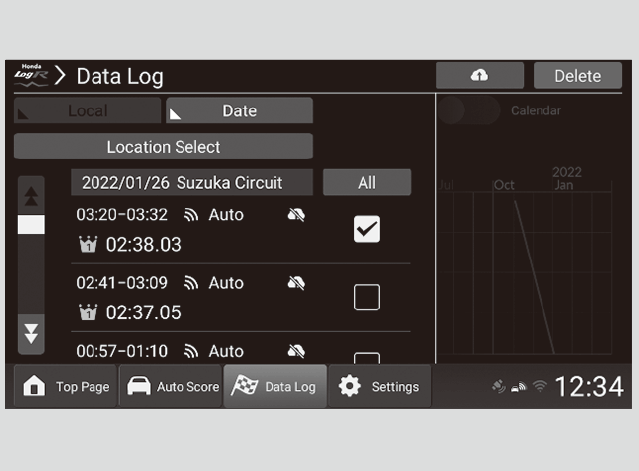
- Select Log Management.
- Select the data you want to upload to the server.
- Select
 or Delete.
- By selecting , the selected LAP will be uploaded to the cloud. After the upload is finished, you can choose whether to delete the selected data from Local.
- If My Server is selected as the data storage location, is replaced by
 and
and  , allowing you to adjust privacy settings for the selected data.
If you select, the selected data will be made public to other users. If you select , the selected data will not be made public to other users. - If you select Delete, the selected data is deleted from either the server or the vehicle's storage, depending on your data storage location.
- By selecting
-
- Detail
-
By uploading data to the server, you can share it with others. (limited to automatic lap measurements and pre-set locations.)If you switch to another screen (by pressing the home button, etc.) in the middle of uploading, the upload will be canceled. Afterwards, when you return to the in-vehicle app a pop-up notification will display informing you that the operation has been canceled.All driving data is uploaded to the server not only while measuring Lap data, but also while Data Log mode is activated.
Deleting Lap Data from the Data Log History
-
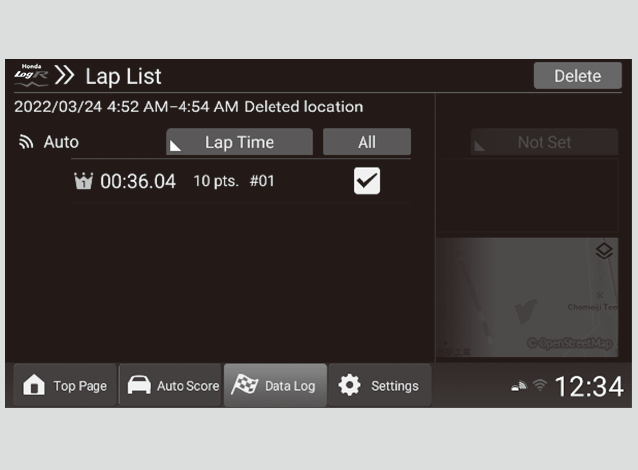
- Select Log Management.
- Select the LAP you want to delete.
- Select Delete.
- By selecting Delete, the selected LAP can be deleted from the Log. Also, you can select whether to save as new Log data, or to overwrite the data with the LAP removed.
-
- Detail
-
The heat map displays in different colors corresponding to both the degree of acceleration and brake pressure.At points where both the accelerator and brake are pressed at the same time, only the brake information is displayed.If the data is saved to My Server or Other Server, Log Management will not be displayed.
VS Mode
This feature allows you to compare your driving history against separate lap data or another user’s driving data.
-
- Go to the detailed Lap Data in the data log history screen.
- Select VS Mode at the top of the screen.
-
-
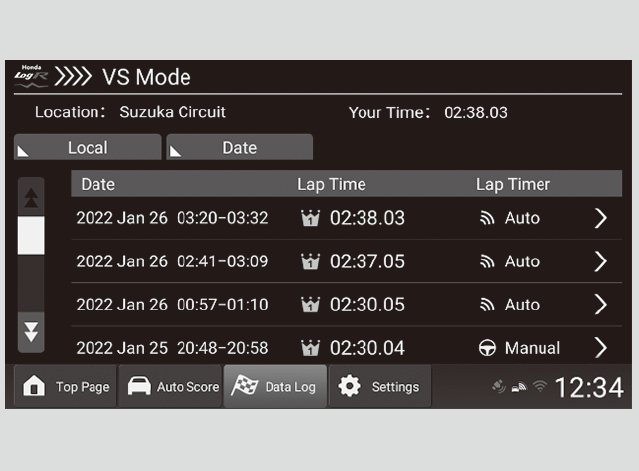
- Select the history item you want to compare.
- By selecting Local, you can select where to save the data to from Local/My Server/Other Server.
- By selecting Date, you can rearrange the data.
- Select the history item you want to compare.
-
-
- Select the data you want to compare against.
-
- Detail
-
Only data recorded with a pre-set location using automatic lap measurements can be used for comparison against other users’ data.If Other Server is selected as the data storage destination:
- Displayed items are changed to Date/Lap Time/User ID/Favorite.
- You can search by users saved to your favorites.
- You can search by User ID. User IDs will only appear on a search if they are an exact match.
VS Mode Comparison Screen
-
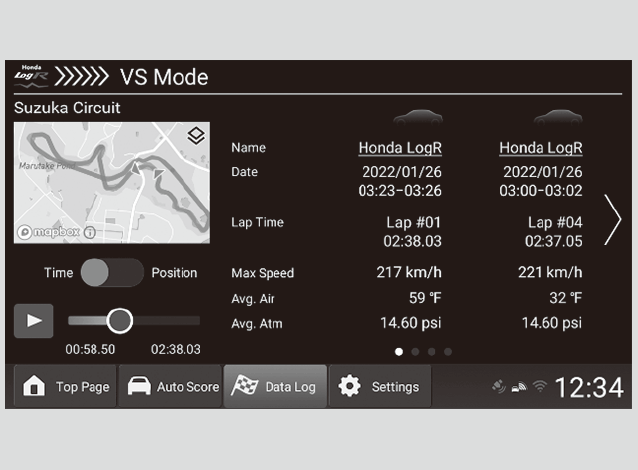
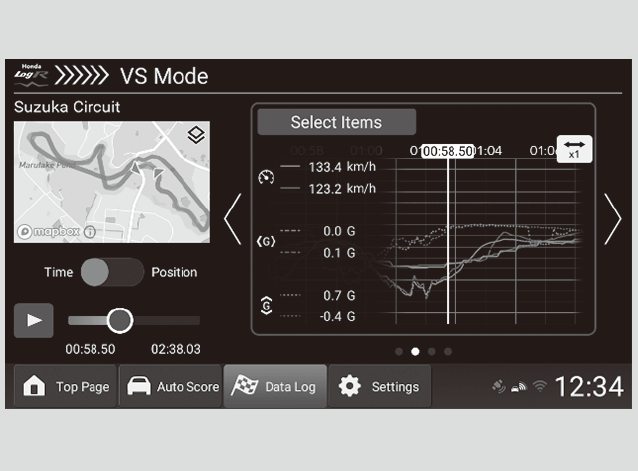
By swiping or touching the screen, you can choose various situations for comparison.
By selecting the play icon, you can also view a time progression of the data.
You can select whether to compare by time elapsed or by mileage. -
-
When using the graph display, you can change which items are displayed.
Changing items on the graph display.- Select Select Items.
- Select the items you want to be displayed.
- You can select up to four categories.
-
- Detail
-
Refer to the commentary in the customize menu for more details on how the scores are generated.
By selecting the icon on the map, you can switch between map view and aerial view.You can view a user’s profile by selecting their nickname. (Not applicable to areas where the server is inaccessible.)
- Recommended topic(s)