


Driver Information Interface Right Side Area (B-type Meter)
When a warning message displays, please check the message and contact a dealer to have the vehicle inspected if necessary. Please refer to the pages below if the Engine oil pressure low, Engine temperature too hot, or Limited stopping power message is displayed.
Switching the Display
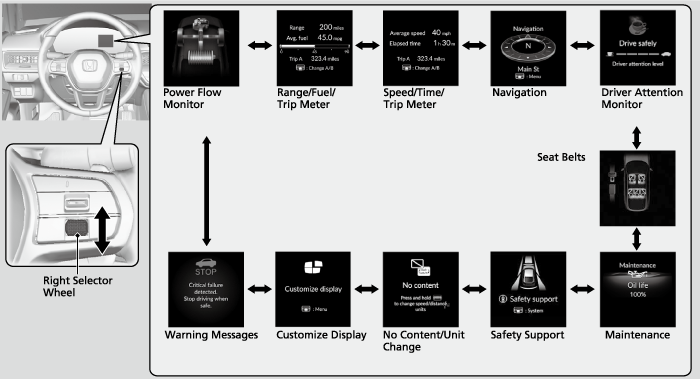
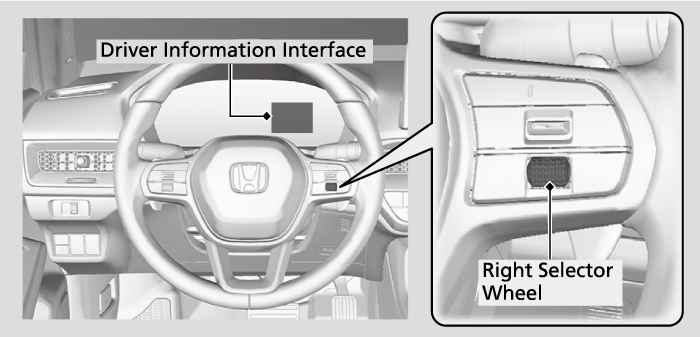
Roll the right selector wheel to view different types of content.
- Detail
-
You can add or remove content from the driver information interface.
Power Flow Monitor
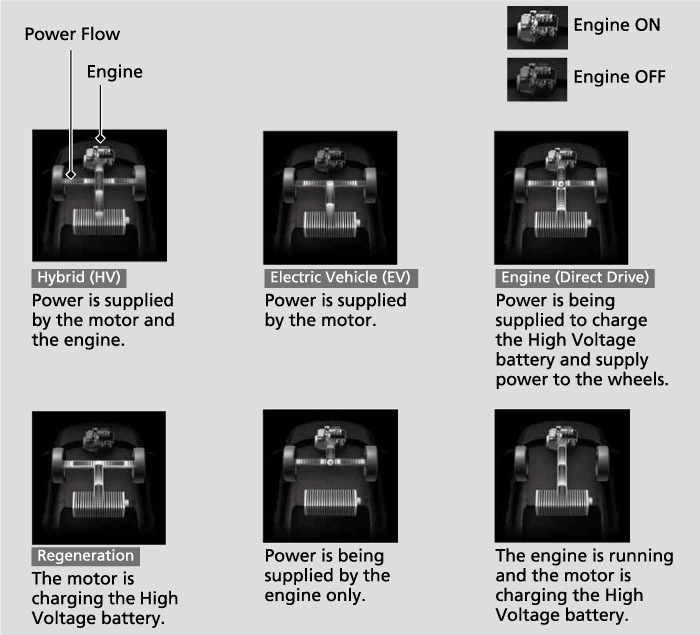
Displays the power flow of the motor and engine, indicating the vehicle’s power source and whether the battery is being charged.
- Detail
-
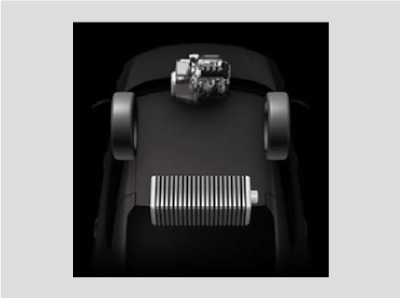
While the vehicle is stationary with the engine running, the following may appear on the driver information interface.
Range/Fuel/Trip Meter
Press the right selector wheel to switch between trip meter A and trip meter B.
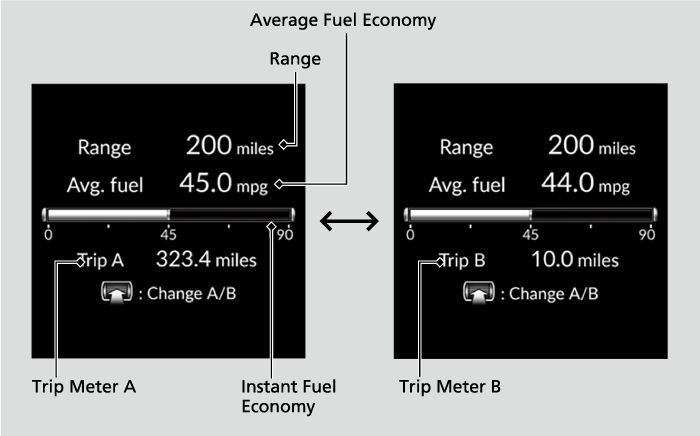
Trip meter
Shows the total number of miles or kilometers driven since the last reset. Meters A and B can be used to measure two separate trips.
To reset the trip meter, display it, press and hold the right selector wheel, and then select Reset.
- The trip meter is reset to 0.0.
Range
Shows the estimated distance you can travel on the remaining power and fuel. This estimated distance is based on the vehicle’s current fuel economy.
- Detail
-
The driving range displayed is only an estimate and may differ from the actual distance the vehicle can travel.
Average fuel economy
Shows the estimated average fuel economy of each trip meter in mpg or l/100 km. The display is updated at set intervals. When a trip meter is reset, the average fuel economy is also reset.
- Detail
-
You can change when to reset the average fuel economy.
Instant fuel economy
Shows the instant fuel economy as a bar graph in mpg or l/100 km.
Speed/Time/Trip Meter
Press the right selector wheel to switch between trip meter A and trip meter B.
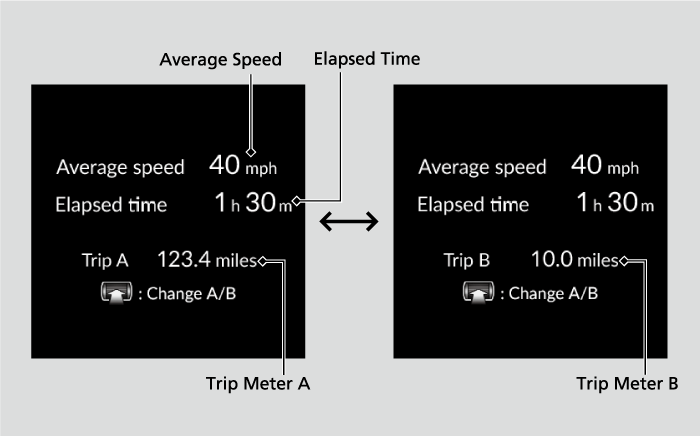
Trip meter
Average speed
Shows the average speed in mph or km/h since Trip A or Trip B was reset.
- Detail
-
You can change when to reset the average speed.
Elapsed time
Shows the time elapsed since Trip A or Trip B was reset.
- Detail
-
You can change when to reset the elapsed time.
Navigation
- Detail
-
You can select whether to have the turn-by-turn display come on or not during the route guidance.
Turn-by-turn directions may not be available for all apps.
Compass
Shows the compass screen.
Turn-by-Turn Directions
When driving guidance is provided by Google Maps, Apple CarPlay, or Android Auto, turn-by-turn directions to your destination appear.
Driver Attention Monitor
The Driver Attention Monitor analyzes steering inputs to determine if the vehicle is being driven in a manner consistent with drowsy or inattentive driving. If it determines that the vehicle is being driven in such a manner, it will display the degree of the driver’s attention on the driver information interface.
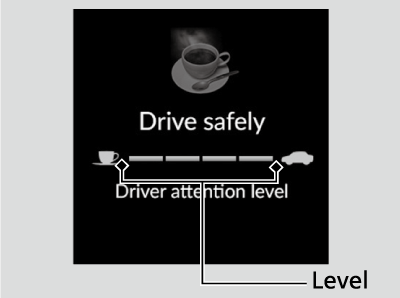
-
When you select Driver Attention Monitor on the driver information interface, bars on it light up in white to indicate the degree of the driver’s attention.
-
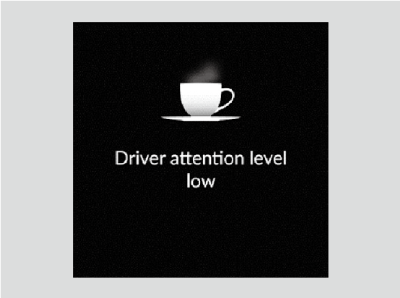
-
If two bars light up, the Driver attention level low message will appear.
-
-
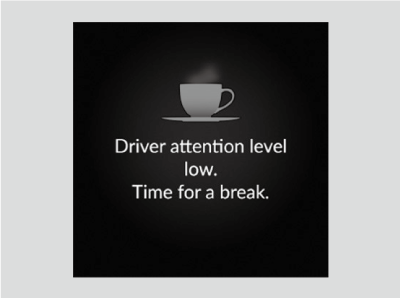
If one bar lights up, the Driver attention level low. Time for a break. message will appear, a beep will sound, and the steering wheel will vibrate.
If this message appears, stop in a safe location and rest for as long as needed.
The message will disappear when the right selector wheel is rolled or when the system has determined that the driver is driving normally.
If the driver does not take a break and the monitor continues to detect that the driver is very tired, the message will appear again after approximately 15 minutes, accompanied by a beep and steering wheel vibrations.
The message does not appear when the traveling time is 30 minutes or less. -
- Detail
-
The Driver Attention Monitor cannot always detect if the driver is tired or inattentive.
Regardless of the system’s feedback, if you are feeling tired, stop in a safe location and rest for as long as needed.
The Driver Attention Monitor resets when:
- The power system is turned off.
- The driver unfastens the seat belt and opens the door while the vehicle is stopped.
For the Driver Attention Monitor to function:
- The vehicle must be traveling above 25 mph (40 km/h).
- The electric power steering (EPS) system indicator must be off.
- Detail
-
The bars on the driver information interface remain grayed-out unless the Driver Attention Monitor is functioning.
Depending on driving conditions or other factors, the Driver Attention Monitor may not function in the following circumstances:
- The steering assist function of the Lane Keeping Assist System (LKAS) is active.
- The condition of the road is poor; e.g., the surface is unpaved or bumpy.
- It is windy.
- The driver is frequently operating the vehicle in an assertive manner, such as changing lanes or accelerating.
Customizing
You can change the Driver Attention Monitor settings. Select Tactile And Audible Alert, Tactile Alert, or Off.
Seat Belts
Occurs, under specified conditions, when seat belts are latched or unlatched.
Maintenance
Shows the remaining oil life and Maintenance MinderTM.
Safety Support
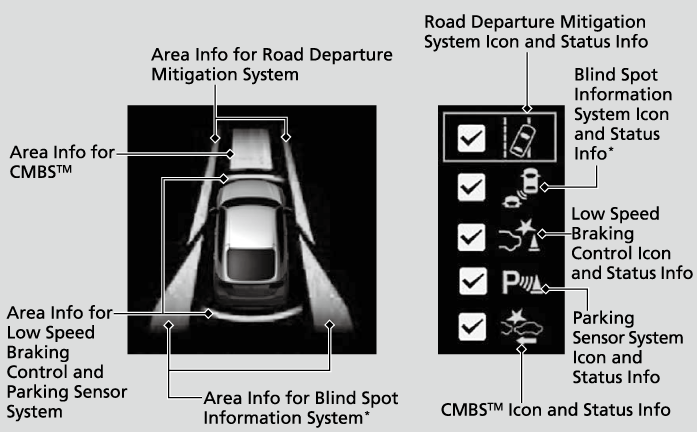
Indicates the status of the Road Departure Mitigation system, CMBSTM, Low Speed Braking Control, blind spot information system, and parking sensor system, such as On, Off, or Failure, by color and letters.
The following colors indicate the status of any of the above-mentioned systems:
- Green: The system is on.
- Gray: The system is off.
- Amber: There is a problem with the system.
- Detail
-
If a system is indicated by the color amber, have your vehicle checked by a dealer immediately.To turn each system on or off, first press the right selector wheel to switch displays. From the next display, you can select which system to turn on or off.
Road Departure Mitigation System
Blind Spot Information System*
You can also confirm the status of each function by the color of the safety support indicator.
Even when the Low Speed Braking Control icon is green, if the Rear Sensor Setting is turned off, the brake assist will not operate when reversing.
Even when the parking sensor system icon is green, if the Rear Sensor Setting is turned off, the rear parking sensor will not operate when reversing.
Speed/Distance Units
Press and hold the right selector wheel when you select the No Content screen on the driver information interface. Each time you do this, the unit will change from miles and mph to km and km/h or vice versa. After this, a confirmation screen will appear for a few seconds.
Customize Display
Arrange content on the right side area
You can choose which contents to display on the right side area.
-
- Press the right selector wheel when you select the Customize Display on the driver information interface.
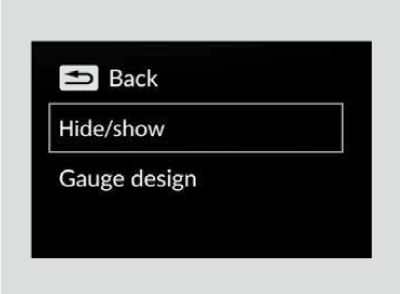
- Roll the right selector wheel to scroll to select Hide/show, then press the right selector wheel.
-
-
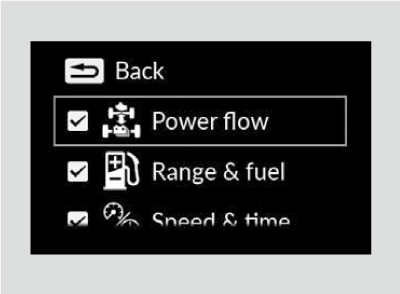
- Roll the right selector wheel to scroll between contents, then press the right selector wheel to check or uncheck them.
-
- Detail
-
Contents that are gray cannot be removed from the right side area.When you customize settings, shift to P.
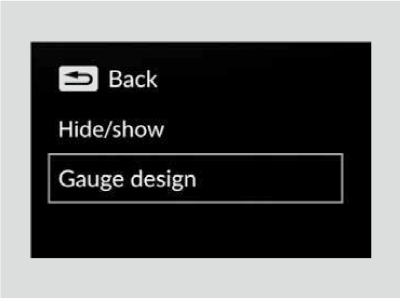
Change gauge design
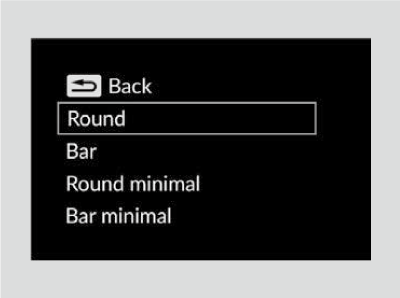
You can change the gauge design.
-
- Press the right selector wheel when you select the Customize Display on the driver information interface.
- Roll the right selector wheel to scroll to select Gauge design, then press the right selector wheel.
-
-
- Roll the right selector wheel to scroll to select your desired settings, then press the right selector wheel.
-
- Detail
-
When using the Round minimal or Bar minimal gauge design, a simplified display is used when ACC with Low Speed Follow is in operation.
Warnings
You can check if there are any active warning messages.
- Detail
-
If there are multiple warnings, you can roll the right selector wheel to see other warnings.
* Not available on all models
- Recommended topic(s)