


Other Interior Convenience Items
Sun Visor
-
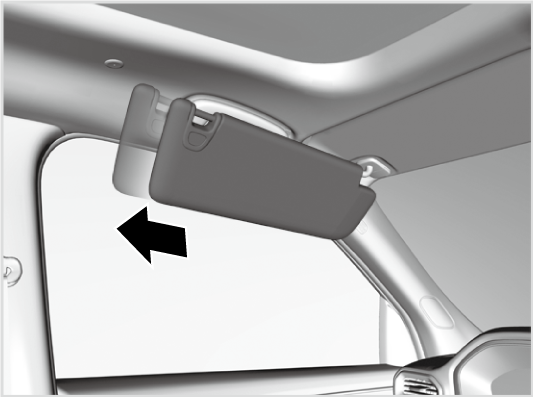
The sun visor can be extended horizontally.
-
Accessory Power Sockets
The accessory power sockets can be used when the power mode is in ACCESSORY or ON.
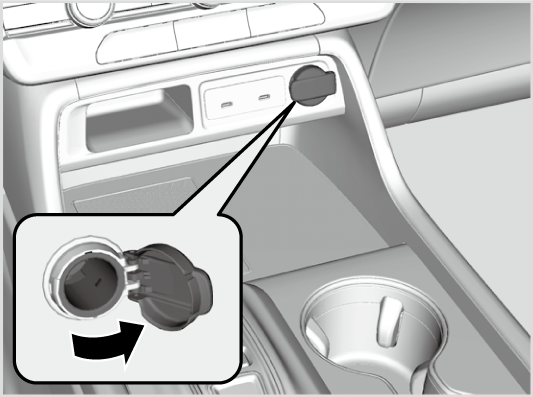
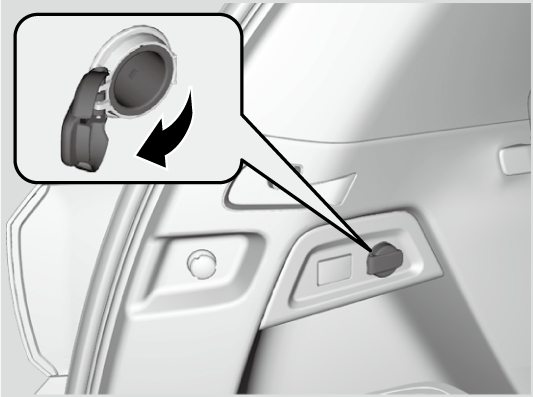
- Detail
-
NOTICE
Do not insert an automotive type cigarette lighter element. This can overheat the accessory power socket.
The accessory power sockets are designed to supply power for 12-volt DC accessories that are rated 180 watts (15 amps) or less.To prevent battery drain, only use the accessory power socket with the engine running.When the accessory power socket is not in use, close the cover to prevent any small foreign objects from getting into the accessory power socket.
AC Power Outlet*
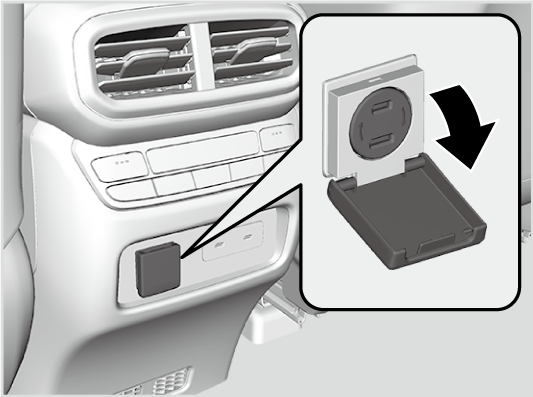
The AC power outlet can be used when the engine is running.
-
Open the cover to use it. Plug in the appliance slightly, turn it 90° clockwise, then push it all the way.
-
- Detail
-
NOTICE
Do not use the AC power outlet for electric appliances that require high initial peak wattage, such as cathode-ray tube type televisions, refrigerators, electric pumps, etc. It is not suitable for devices that process precise data, such as medical equipment, and that require an extremely stable power supply, such as microcomputer-controlled electric blankets, touch sensor lamps, etc.
The AC power outlet is designed to supply power for up to 115 volt appliances that are rated 150 watts or less.Continued use of any electric appliance/device exceeding these ratings may result in damage to the appliance/device.When the AC power outlet is not in use, close the cover to prevent any small foreign objects from getting into the AC power outlet.
Wireless Charger*
To use the wireless charger, the power mode must be in ACCESSORY or ON.
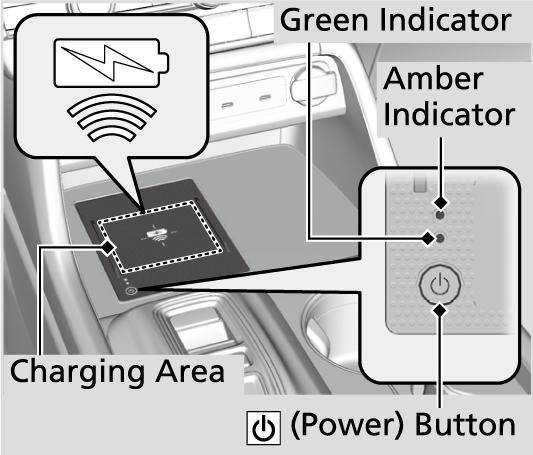
Charge any devices compatible with Qi wireless charging on the area indicated by the  mark as follows:
-
- To turn the system on and off, press and hold the
 (power) button.
- When the system is activated, the green indicator light comes on.
- Place the device you want to charge on the charging area.
- The system will automatically start charging the device and the amber indicator light will come on.
- Make sure that the device is compatible with the system and placed with the chargeable side in the center of the charging area.
- When charging is completed, the green indicator light will come on.
- Depending on the device, the amber indicator light will stay on.
- To turn the system on and off, press and hold the
-
- CAUTION
- Metal objects between the charge pad and the device to be charged will get hot and can burn you.
- Always remove foreign objects from the charge pad before charging the device.
- Be sure the surface is clear of dust and other debris before charging.
- Do not spill liquids (i. e. water, drinks, etc.) on the charger and the device.
- Do not use oil, grease, alcohol, benzine or thinner for cleaning the charge pad.
- Do not cover the system with towels, clothing, or other objects while charging etc.
- Avoid spraying aerosols which may come in contact with the charge pad surface.
- Detail
-
RF Radiation Exposure Statement:U.S. modelsThis equipment complies with FCC RF Radiation exposure limits set forth for an uncontrolled environment.
This device and its antenna must not be co-located or operating in conjunction with any other antenna or transmitter.Canadian modelsThis equipment complies with ISED RF Radiation exposure limits set forth for an uncontrolled environment. This device and its antenna must not be co-located or operating in conjunction with any other antenna or transmitter.In order to use safely:- Remove any metal objects from the charge pad before charging a device.
- Do not open the charger case.
- Do not use the charger if it malfunctions. Contact your dealer.
If the charger interferes with radio communications, attempt to correct the interference:- Press and hold the switch on the charger for a few seconds to turn off the charger.
appears on the audio/information screen when the device is being charged by the wireless charger.This system consumes a lot of power. Do not use the system for a long time when the engine is not running. This may weaken the battery, making it difficult to start the engine.When using the wireless charger, check the user’s manual that came with the compatible device you want to charge.The wireless charger can support up to 15 W, but the charging rate varies based on the device and other conditions.NOTICE
Do not place any magnetic recording media or precision machines within the charging area while charging.
The data on your cards such as credit cards can be lost because of the magnetic effect. Also, precision machines such as watches can be affected.“Qi” and marks are the registered trademarks owned by Wireless Power Consortium (WPC).In the following cases, charging may stop or not start:
- The device is already fully charged.
- The temperature of the device is extremely high while charging.
- You are at a place that emits strong electromagnetic waves or noises, such as a TV station, electric power plant, or gas station.
- The device has a cover, case, or accessories which are not compatible with wireless charging.
A device may not charge if the size or shape of its chargeable side is not appropriate for use with the charging area.Not all devices are compatible with the system.During the charging phase, it is normal for the charging area and device to heat up.Charging may be briefly interrupted when:- All the doors and the tailgate are closed
- to avoid interference with the proper functioning of the keyless access system. - The position of the device is altered.
Do not charge more than one device at a time on a charging area.If the device becomes too hot and its battery protection function activates, it may charge extremely slowly or no longer charge.
The temperature at which the battery protection function activates depends on the device.
When charging does not start
Perform one of the solutions in the following table.
|
Indicator
|
Cause
|
Solution
|
|
|---|---|---|---|
|
Green & Amber
|
Blinking simulta-neously
|
There is an obstacle(s) between the charging area and the device.
|
Remove the obstacle(s).
|
|
The device is not within the charging area.
|
Pick up and reset the device to the center of the charging area where
is located. |
||
|
The temperature of the wireless charger pad increases.
|
Temporarily suspend charging the device. Wait for the temperature to drop and attempt to charge the device again.
|
||
|
Amber
|
Blinking
|
The wireless charger is faulty.
|
Contact a dealer for repairs.
|
Heated Steering Wheel*
-
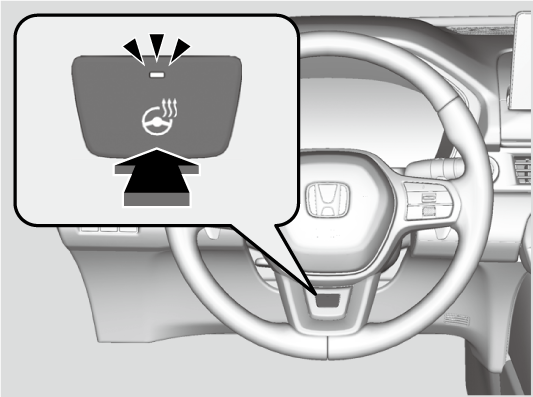
The heated steering wheel can be used when the power mode is in ON.
Press the button on the lower side of the steering wheel.
When a comfortable temperature is reached, press the button again to turn it off.
The heated steering wheel is turned off every time you start the engine, even if you turned it on the last time you drove the vehicle.
-
- Detail
-
Do not use the heated steering wheel continuously when the engine is off. Under such conditions, the battery may be weakened, making the engine difficult to start.
Front Seat Heaters and Ventilation*
-
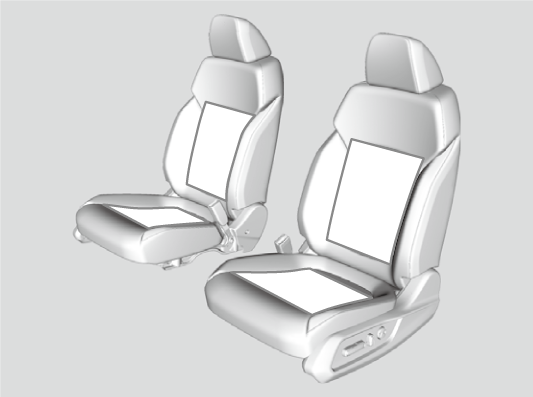
The seat heaters or ventilators* can be used when the power mode is in ON.
The seat heaters: Use them to warm up the seat.
The seat ventilators*: Use them when you want to ventilate the surface of the seats.
When used with the air conditioning, the surface of the seats will become easier to cool. -
-
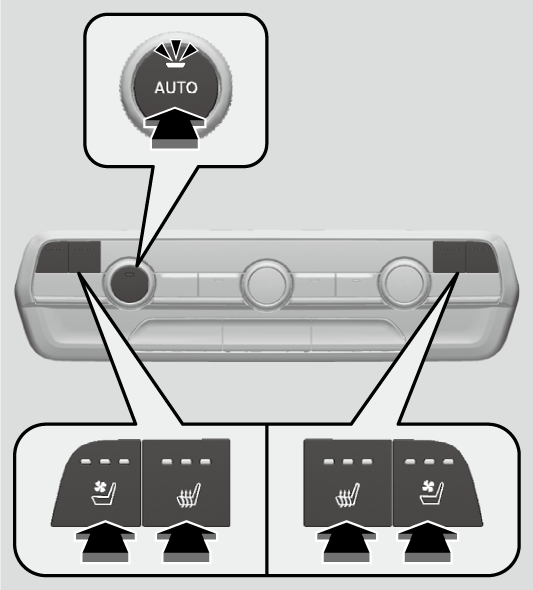
Press the seat heater or the seat ventilation* button:
Once - The HI setting (three indicators on)
Twice - The MID setting (two indicators on)
Three times - The LO setting (one indicator on)
Four times - The OFF setting (no indicators on)When the power mode is turned on after it is turned off, the previous setting is maintained.
Press the AUTO button:
Both the air conditioner and seat temperature will automatically change to the setting most suitable to the ambient environment.- When any seat heater or seat ventilation* button is pressed, settings will switch to manual mode.
-
- WARNING
-
Heat induced burns are possible when using seat heaters.
Persons with a diminished ability to sense temperature (e.g., persons with diabetes, lowerlimb nerve damage, or paralysis) or with sensitive skin should not use seat heaters.
- Detail
-
Do not use the seat heaters and the seat ventilation* even in LO when the engine is off. Under such conditions, the battery may be weakened, making the engine difficult to start.After a certain period of time, the strength setting for the seat heaters will automatically be reduced by one level at a time until the seat heater shuts off. The elapsed time varies according to the interior environment.As time passes, the set temperature will fall, and eventually the seat heater will shut off.The seat heater and seat ventilation* may turn on if sensors detect weight on the passenger seat due to cargo, etc.To prevent automatic activation, you can turn off automatic climate control for the front seat.
Second Row Outer Seat Heaters*
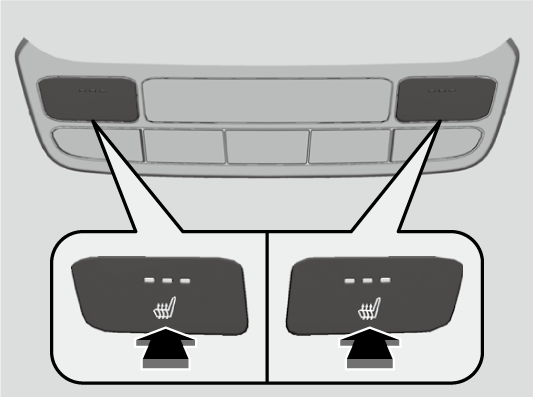
-
The seat heaters can be used when the power mode is in ON.
Press the seat heater button:
Once - The HI setting (three indicators on)
Twice - The MID setting (two indicators on)
Three times - The LO setting (one indicator on)
Four times - The OFF setting (no indicators on) -
- WARNING
-
Heat induced burns are possible when using seat heaters.
Persons with a diminished ability to sense temperature (e.g., persons with diabetes, lowerlimb nerve damage, or paralysis) or with sensitive skin should not use seat heaters.
- Detail
-
Do not use the seat heaters even in LO when the engine is off. Under such conditions, the battery may be weakened, making the engine difficult to start.After a certain period of time, the strength setting for the seat heaters will automatically be reduced by one level at a time until the seat heater shuts off. The elapsed time varies according to the interior environment.
Integrated Sunshades*
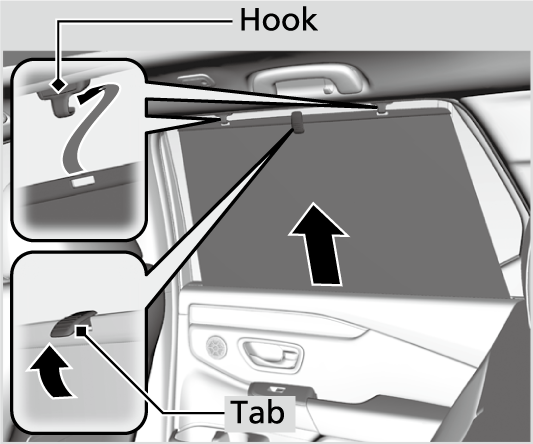
-
Pull the tab and roll up the sunshade all the way. Use the hooks to hang it.
-
- Detail
-
Use the sunshades only when the windows are fully closed. Using the shade while a window is open can unhook and blow off the shade, hitting and possibly hurting anyone sitting near the window.
HomeLink® Universal Transceiver*
The HomeLink® Universal Transceiver can be programmed to operate up to three remote controlled devices around your home, such as garage doors, lighting, or home security systems.
- Detail
-
Before programming HomeLink to operate a garage door opener, confirm that the opener has an external entrapment protection system, such as an “electronic eye,” or other safety and reverse stop features. If it does not, HomeLink may not be able to operate it.NOTE:
Some LED lightbulbs installed in the garage door opener can interfere with the training and consistent operation of your HomeLink device. Please consider use of Low RF interference bulbs in your garage door opener.HomeLink will not operate when the vehicle security is set or about 30 minutes after the power mode is set to VEHICLE OFF. If HomeLink indicator (LED) does not show when a button is pressed, ensure doors are unlocked or the power mode is set to ACCESSORY or ON to return HomeLink to operation.
Important Safety Precautions
Refer to the safety information that came with your garage door opener to test that the safety features are functioning properly. If you do not have the safety information, contact the manufacturer.
Before programming HomeLink, make sure that people and objects are out of the way of the garage or gate to prevent potential injury or damage.
When programming a garage door opener, park just outside the garage door’s path.
Training HomeLink
-
If it is necessary to erase a previously entered learned code:
- Press and hold the I and III HomeLink buttons for about 10 seconds, until the green indicator blinks. Release the buttons, and proceed to step 1.
- If you are training the second or third button, go directly to step 1.
-
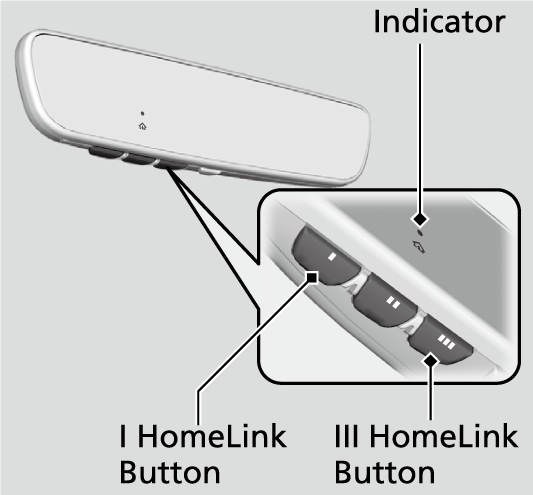
The instructions on the next page should work for most gate or garage openers, but may not work for all. For detailed instructions about your specific remote opener, visit http://www.homelink.com or call (800) 355-3515.
- Detail
-
Reprogramming a Button
If you want to retrain a programmed button for a new device, you do not have to erase all button memory. You can replace the existing memory code using this procedure: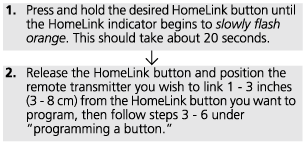 Erasing Button Memory
To erase programming from the buttons, press and hold the two outside HomeLink buttons until the HomeLink indicator changes from orange to rapidly flashing green. This should take about 10 seconds. You should erase all programming before selling the vehicle.Operating
To operate, simply press and release the programmed HomeLink button. Activation will now occur for the trained device.Questions
For questions or comments, visit www.HomeLink.com or www.youtube.com/HomeLinkGentex, or call the HomeLink Hotline (North America only) at (800) 355-3515.HomeLink® is a registered trademark of Gentex Corporation.
Programming a Button
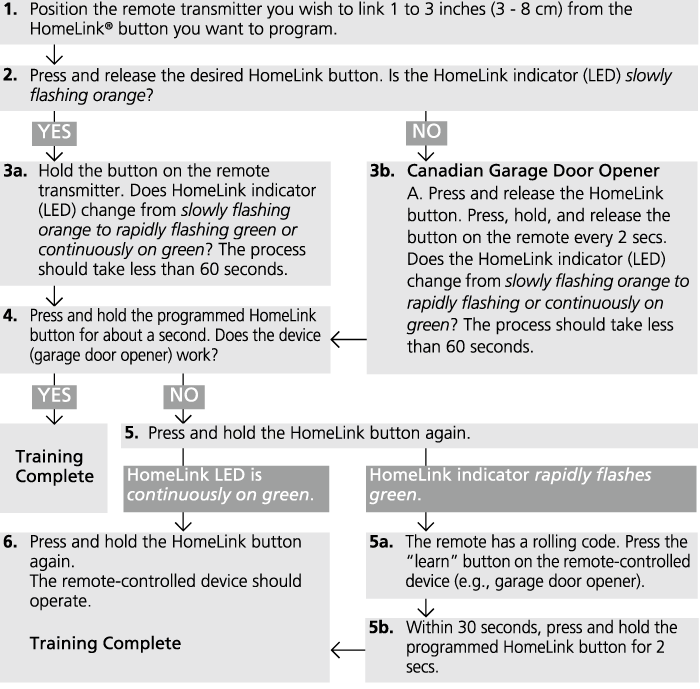
* Not available on all models
- Recommended topic(s)