


Displaying an Image From the Multi View Cameras
- Detail
-
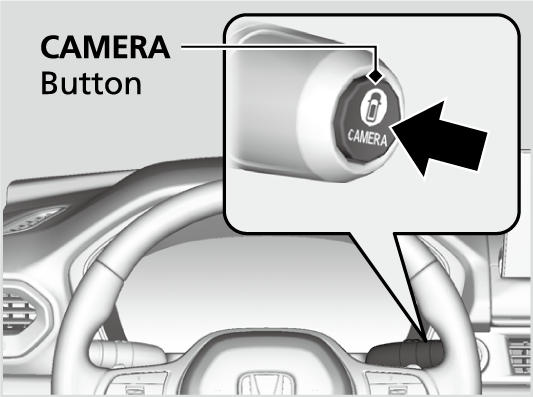
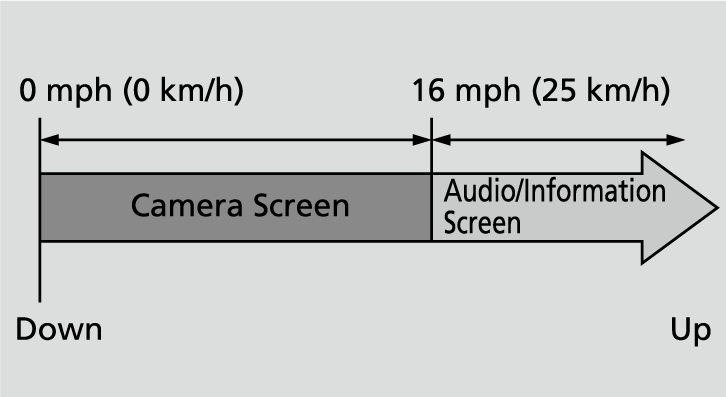
The navigation system is disabled when the shift position is in R.Operating the navigation system or audio system while the multi view camera system screen is displayed cancels the multi view camera system screen and starts up the navigation system screen.If you press the CAMERA button while the vehicle speed is more than 16 mph (25 km/h), the standby screen appears.
When the vehicle speed is reduced below 12 mph (20 km/h), the screen switches to a multi view camera system image.
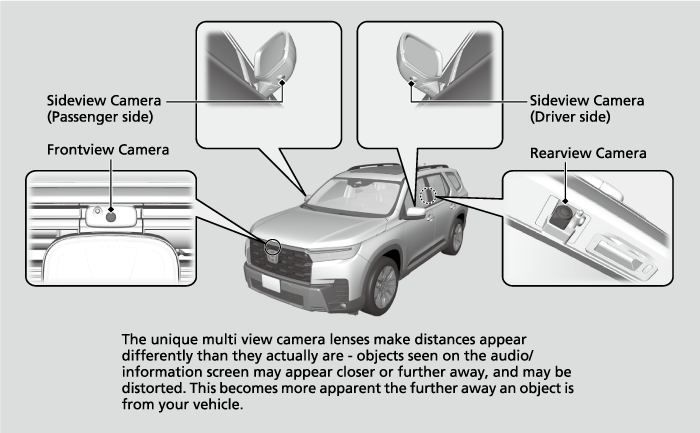
Camera Locations and Images
Reference Lines and Guides
The following can be displayed when the system is on
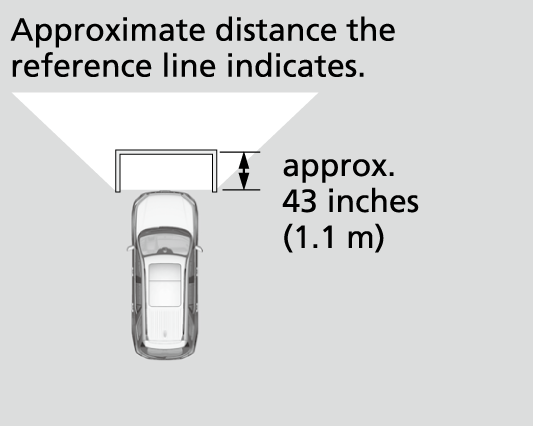
Fixed Guideline: Helps you get a sense of a distance between your vehicle and the rear surroundings. The distance may appear differently than the actual distance.
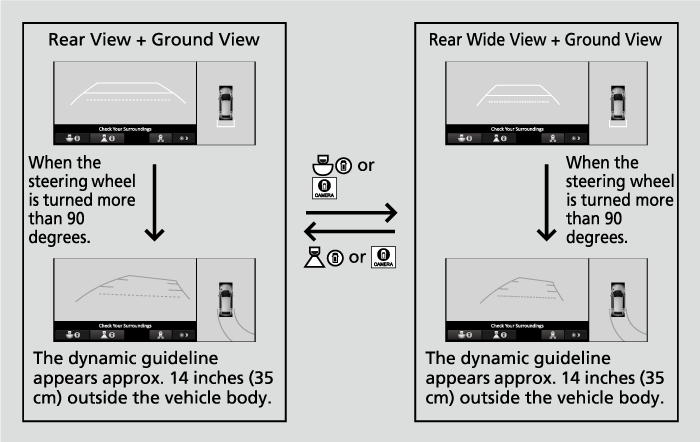
Dynamic Guideline: Indicates vehicle direction while the steering wheel is in the current position.
- Detail
-
The positions/distances indicated by the guidelines and camera views on the display may differ from the actual positions/distances due to the changes in the vehicle height, road conditions, and other factors.
The guidelines should be used as a reference only.The guidelines can be turned on and off using the audio/information screen.
If you turn the guidelines off, they remain off until you turn them back on.
Using the Multi View Camera System
Checking the front and sides of your vehicle
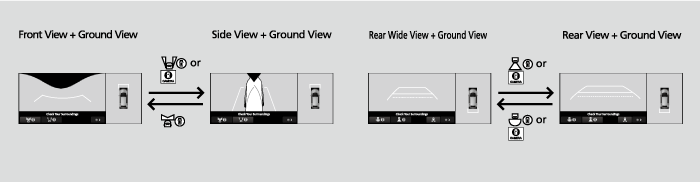
You can display the front ground view screen using all the four cameras for the system. Pressing the CAMERA button when the vehicle speed is at below 12 mph (20 km/h) changes the image as follows.
- Detail
-
If the vehicle speed exceeds 15 mph (25 km/h) while the front or side view image from the multi view camera system is displayed, the screen automatically switches to the audio/information screen.
Checking the sides of your vehicle
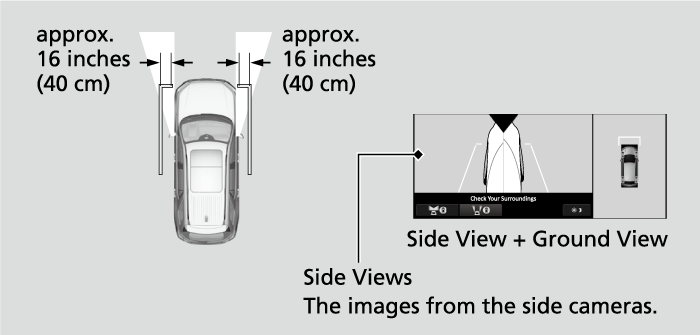
The side view screens are convenient when you pull over at a curb or tollbooth, or slowly pass by oncoming vehicles on a narrow road.
- Detail
-
When the door mirrors are folded, the side views cannot be displayed.
Checking for obstacles at the back of your vehicle
The display automatically changes to the rear view when the shift position is changed to R.
- Detail
-
The ground view can be displayed even with the door mirrors folded. However, the viewable angle and blind spot change.
Do not refer to the multi view camera system when the door mirrors are folded.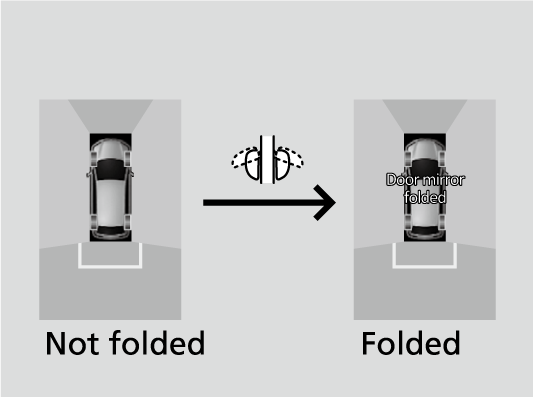 When changing the gear position from/to R, you may experience a delay in switching between the audio/information screen and a rear view image.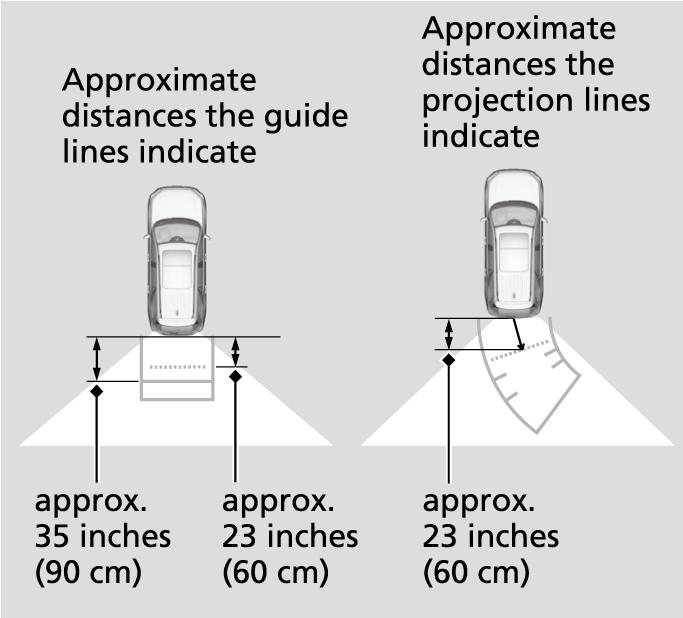
TrailWatchTM*
When the drive mode is in TRAIL mode, images from the Multi View Camera System are displayed while your vehicle speed is about 12 mph (20 km/h) or lower. When the vehicle’s speed reaches about 16 mph (25 km/h) or higher, the display will return to the previous screen.
Multi View Camera Guideline accuracy degrades off road.
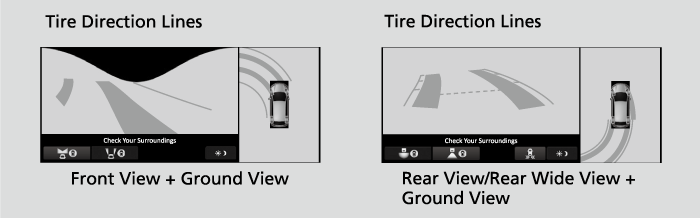
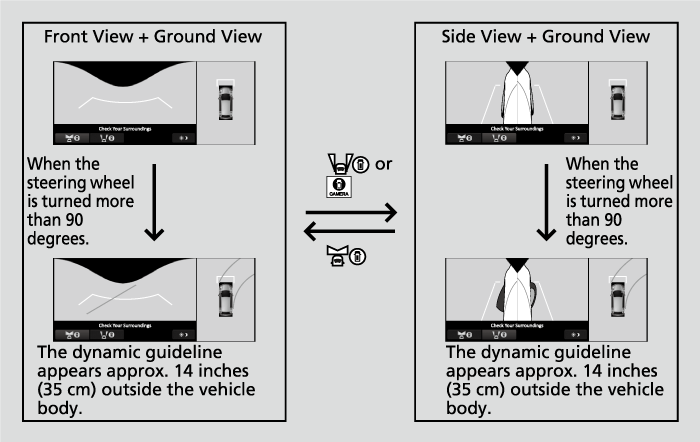
The dynamic guideline appears approx. 14 inches (35 cm) outside the vehicle body.
- Detail
-
The tire direction lines should be used as a reference only.
The positions/distances indicated by the tire direction lines and camera views on the display may differ from the actual positions/distances due to the changes in the vehicle height, road conditions, and other factors.
Multi View Camera System Limitations
The system may not work properly under the following conditions.
|
Conditions
|
Solutions
|
|
|---|---|---|
|
The images may not appear clearly when:
|
|
Do not use the multi view camera system but rely only on visual confirmation until the conditions allow the system to work properly.
|
|
Clean camera lenses with the frontview or rearview camera washer or a soft cloth moisturized with water, mild detergent or glass cleaner.
|
|
|
The audio/information screen is dirty.
|
Wipe off the screen using a soft dry cloth.
|
|
|
A camera angle is altered.
|
A camera or the area around the camera has been severely impacted.
|
Do not use the multi view camera system and contact a dealer.
|
|
An error message is displayed while the multi view camera system is in use.
|
||
* Not available on all models
- Recommended topic(s)