


HFL Menus
The power mode must be in ACCESSORY or ON to use the system.
- Detail
-
To use HFL, you must first pair your Bluetooth-compatible cell phone to the system while the vehicle is parked.Some functions are limited while driving. A message appears on the screen when the vehicle is moving and the operation is canceled.
Phone menu screen
-
- Press the
 button.
 - Select the phone zone.
- Select Menu.
- Press the
-
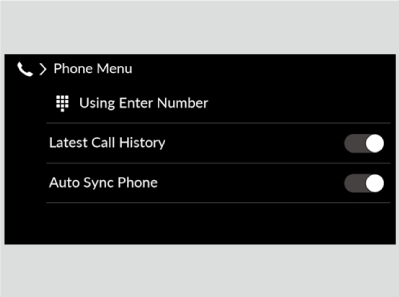

Phone screen
-
- Press the
 button.
 - Select the phone zone.
- Press the
-
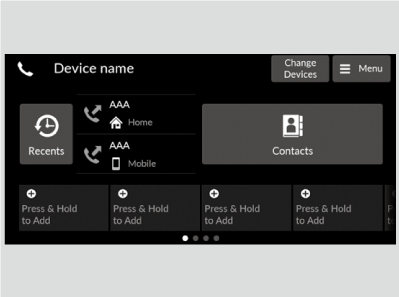

Phone Setup
- Detail
-
Your Bluetooth-compatible phone must be paired to the system before you can make and receive hands-free calls.Phone Pairing Tips:
- You cannot pair your phone while the vehicle is moving.
- Up to six phones can be paired.
- Your phone’s battery may drain faster when it is paired to the system.
Once you have paired a phone, you can see it displayed on the screen with one or more icons on the right side.
These icons indicate the following: : The phone is compatible with Bluetooth® Audio.
 : The phone is compatible with HFL.
 : The phone is compatible with Apple CarPlay.
 : The phone is compatible with Android Auto.
Bluetooth® setup
The Bluetooth® function is always ON.
-
To pair a cell phone (when there is no phone paired to the system)
- Press the button.
- Select the phone zone.
- Select Connect New Device.
- Make sure your phone is in search or discoverable mode, then select Search for Devices.
- HFL automatically searches for a Bluetooth® device.
- Select your phone when it appears on the list.
- If your phone still does not appear, search for Bluetooth® devices using your phone.
From your phone, search for Vehicle Name. - Confirm if the pairing code on the audio/information screen and your phone matches.
This may vary by phone.
- If your phone still does not appear, search for Bluetooth® devices using your phone.
- Select Yes.
- Press the
-
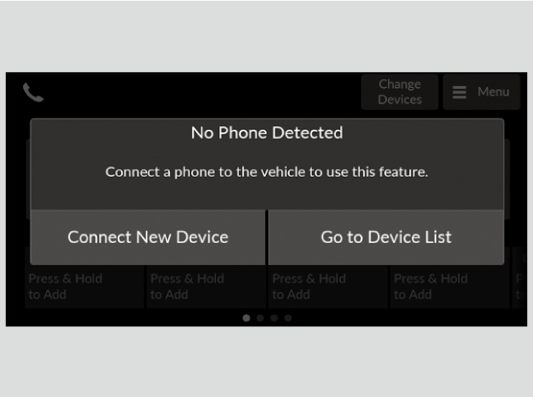
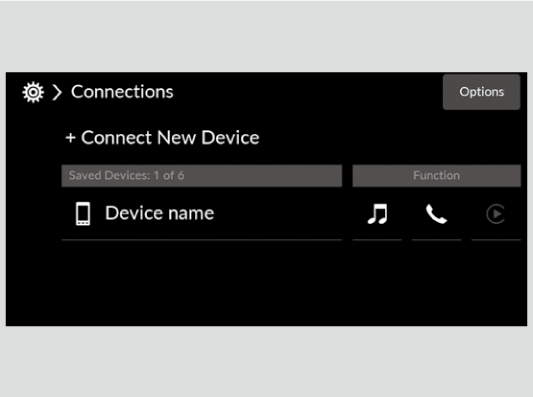
- Detail
-
If no other phones are found or paired when trying to switch to another phone, the original phone is connected again.To pair other phones, select + Connect New Device from the Connections screen.You can also switch the connection with the, icon, or icon in the device list.
When or is selected, , cannot be selected.
To delete a paired phone
- Go to the phone screen.
- Select Change Devices.
- Select a phone you want to delete.
- Select Delete.
- A confirmation message appears on the screen. Select Delete.
Automatic Import of Cellular Phonebook and Call History
When Auto Sync Phone is set to On:
When your phone is paired, the contents of its phonebook and call history are automatically imported to HFL.
Changing the Auto Sync Phone setting
- Go to the phone menu screen.
- Select Auto Sync Phone.
- Select On or Off.
- Detail
-
When you select a person from the list in the cellular phonebook, you can see up to five category icons. The icons indicate what types of numbers are stored for that name.
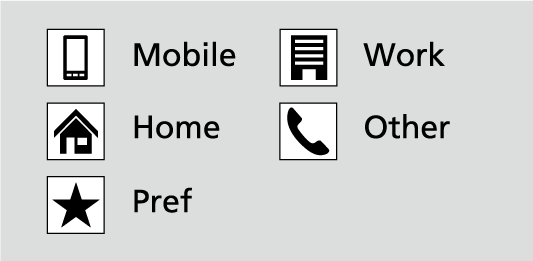 On some phones, it may not be possible to import the category icons to HFL.The phonebook is updated after every connection. Call history is updated after every connection or call.
Favorite Contacts
To store a number as a favorite contact:
- Press the button.
- Select the phone zone.
- Select and hold Press & Hold to Add.
- Select From Recents, From Contacts, or Using Enter Number.
- Select the phone number.
- Input number, and select OK.
To edit a favorite contact
- Press the button.
- Select the phone zone.
- Select and hold a favorite contact.
- Select Edit Favorites.
- Select a setting you want.
- Select Enter or select type.
To delete a favorite contact
- Press the button.
- Select the phone zone.
- Select and hold a favorite contact.
- Select Remove Favorite.
Making a Call
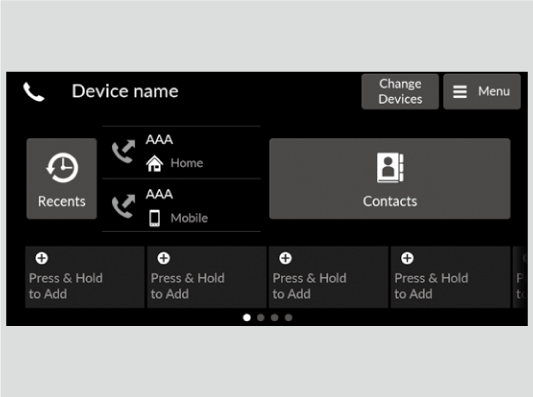
You can make calls by inputting any phone number, or by using the imported phonebook, call history, or favorite contact entries.
- Detail
-
Once a call is connected, you can hear the voice of the person you are calling through the audio speakers.
To make a call using the imported phonebook
When your phone is paired, the contents of its phonebook are automatically imported to HFL.
- Press the button.
- Select Contacts.
- Select a name. If more than one number is registered, select a number.
- Dialing starts automatically.
- The phonebook is stored alphabetically.
- You can sort by First Name or Last Name. Select the icon on the upper right of the screen.
To make a call using a phone number
- Press the button.
- Select the phone zone.
- Select Menu.
- Select Using Enter Number.
- Select a number.
- Select Call.
- Dialing starts automatically.
To make a call using the call history
Call history is stored by All, Dialed, Missed, or Received.
- Press the button.
- Select Recents.
- You can sort by All, Dialed, Missed, or Received. Select the icon on the upper right of the screen.
- Select a number.
- Dialing starts automatically.
- Detail
-
The call history appears only when a phone is connected to HFL, and displays the last 100 dialed, received, or missed calls.
To make a call using a favorite contact
- Press the button.
- Select the phone zone.
- Select desired favorite contact.
- Dialing starts automatically.
Receiving a Call
-
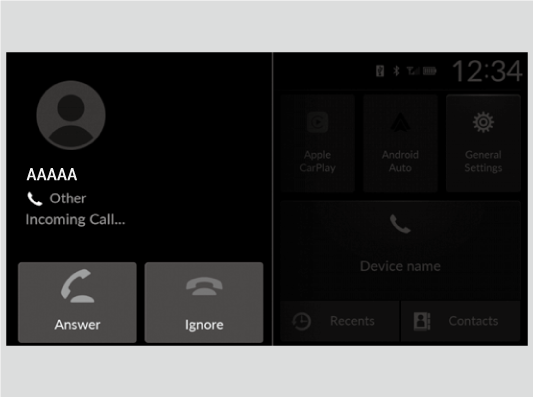
When there is an incoming call, an audible notification sounds and the Incoming Call... screen appears.
You can answer the call using the left selector wheel.
To pick up the call, roll up or down to select Answer on the driver information interface and then press the left selector wheel.- If you want to decline or end the call, select Ignore on the driver information interface using the left selector wheel.
-
- Detail
-
Call Waiting
Select Answer using the left selector wheel to put the current call on hold to answer the incoming call.
Select Swap calls using the left selector wheel to return to the current call.
Select Ignore using the left selector wheel to ignore the incoming call if you do not want to answer it.
Select Hang up using the left selector wheel if you want to hang up the current call.You can select the icons on the audio/information screen instead of the icons on the driver information interface.
Options During a Call
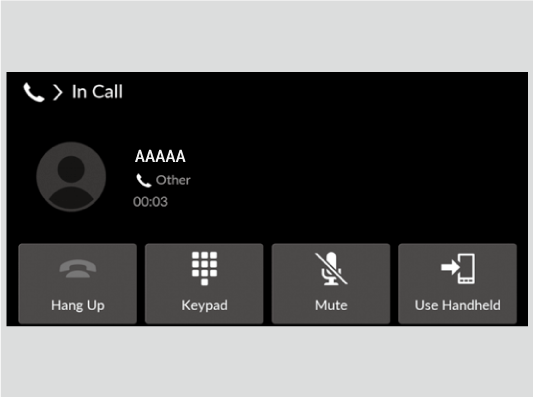
The following options are available during a call.
Swap Calls: Put the current call on hold to answer the incoming call.
Mute: Mute your voice.
Use Handheld: Transfer a call from HFL to your phone.
Keypad: Send numbers during a call. This is useful when you call a menu-driven phone system.
-
The available options are shown on the lower half of the screen.
Select the option.
- Select Mute again to turn it off.
-
- Detail
-
Keypad: Available on some phones.
- Recommended topic(s)