


Audio/Information Screen
Displays the audio status and wallpaper. From this display, you can go to various setup options.
Switching the Display
Using the audio/information screen
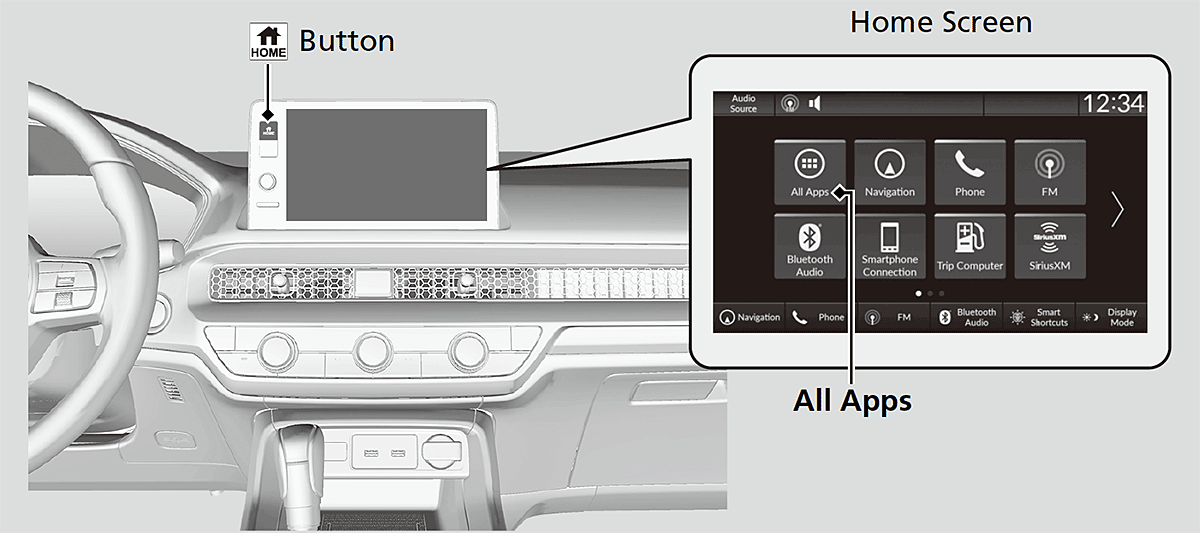
Press the  button to go to the home screen.
Select the following icons on the home screen or after selecting All Apps.
- Detail
-
Touchscreen operation
- Use simple gestures - including touching, swiping and scrolling - to operate certain audio functions.
- Some items may be grayed-out during driving to reduce the potential for distraction.
- You can select them when the vehicle is stopped or use voice commands.
- Wearing gloves may limit or prevent touchscreen response.
You can change the touchscreen sensitivity setting.
- Phone
Bluetooth® HandsFreeLink®Using HFLHFL MenusHondaLink® Assist
- Clock
Displays the clock. - System Updates
- FM/AM/SiriusXM/USB/Bluetooth Audio
Music Playback via Wired Connection
- Vehicle Settings
- General Settings
- Navigation
- HondaLink
- Apple CarPlay/Android Auto
- Smart Shortcuts
- Display Mode
Displays the brightness bar.
Trip Computer
Displays the trip computer information.
- Current Drive tab: Displays the current trip information.
- Trip A/Trip B tab: Displays information for the current and three previous drives.
The information is stored every time you reset Trip A/B.
To reset the Trip A/B, select Settings, then select Delete Trip History.
To change the setting of how to reset Trip A/B, select Settings, then select “Trip A” Reset Timing or “Trip B” Reset Timing.
Wallpaper Setup
You can change, store, and delete the wallpaper on the audio/information screen.
- Detail
-
The wallpaper you set up on Clock Faces cannot be displayed on the driver information interface.
- When importing wallpaper files, the image must be in the USB flash drive's root directory.
Images in a folder cannot be imported. - The file name must be less than 64 bytes.
- The file format of the image that can be imported is BMP (bmp) or JPEG (jpg).
- Up to 11 pictures can be imported.
- The maximum image size is 4,096 × 2,304 pixels. If the image size is less than 1,280 × 720 pixels, the image is displayed in the middle of the screen with the extra area appearing in black.
You cannot delete the initial imported wallpapers. - When importing wallpaper files, the image must be in the USB flash drive's root directory.
Import wallpaper
You can import up to 11 images, one at a time, for wallpaper from a USB flash drive.
- Connect the USB flash drive to the USB port.
- Press the button.
- Select Clock.
- Select Settings.
- Select Clock Faces.
- Select Add More.
- The image of the pictures stored in the USB flash drive are displayed on the list.
- Select a desired picture to import.
- Multiple pictures can be selected at the same time.
- Select OK.
- The selected pictures are displayed.
- Select Transfer.
- It will return to the clock wallpaper setting screen.
Select wallpaper
- Press the button.
- Select Clock.
- Select Settings.
- Select Clock Faces.
- Select a desired picture to set.
- The preview is displayed on the screen.
- Select Save.
- The clock screen which the wallpaper has been set is displayed.
To view wallpaper once it is set
- Press the button.
- Select Clock.
Delete wallpaper
- Press the button.
- Select Clock.
- Select Settings.
- Select Clock Faces.
- Select Delete Photos.
- Select a desired picture to delete.
- Multiple pictures can be selected at the same time.
- Select OK.
- The selected pictures are displayed.
- Select Delete.
- It will return to the clock wallpaper setting screen.
Home Screen
- Detail
-
You can add up to six pages to the home screen.Press the button to go directly back to the first page of the home screen from any page.
To move to the next screen
Selecting < or >, or swiping the screen left or right changes to the next screen.
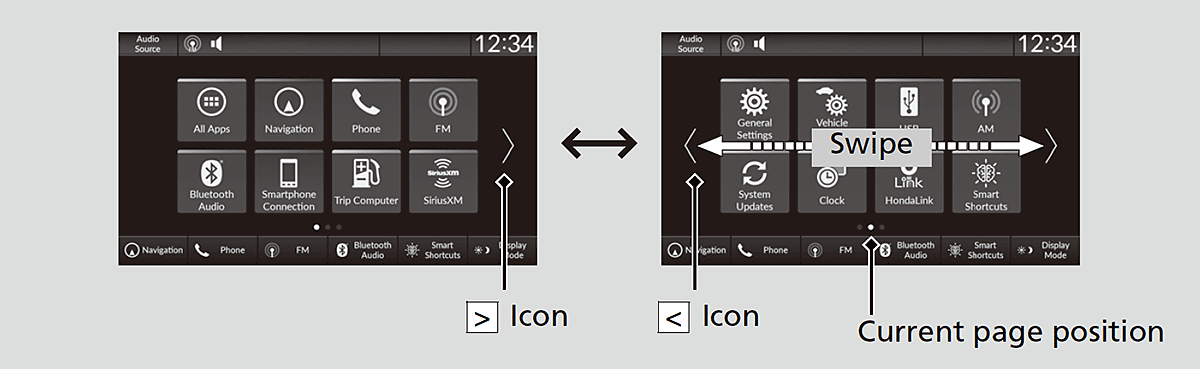
To add/remove app icons on the home screen
App icons can be added or deleted on the home screen.
-
- Press the button.
- Select All Apps.
- Select an app to check or uncheck them.
- Press the
-
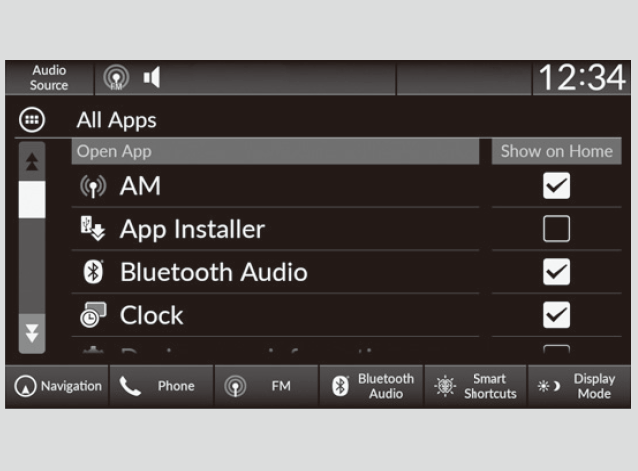
- Detail
-
Apps will not be deleted by deleting the icon on the home screen.
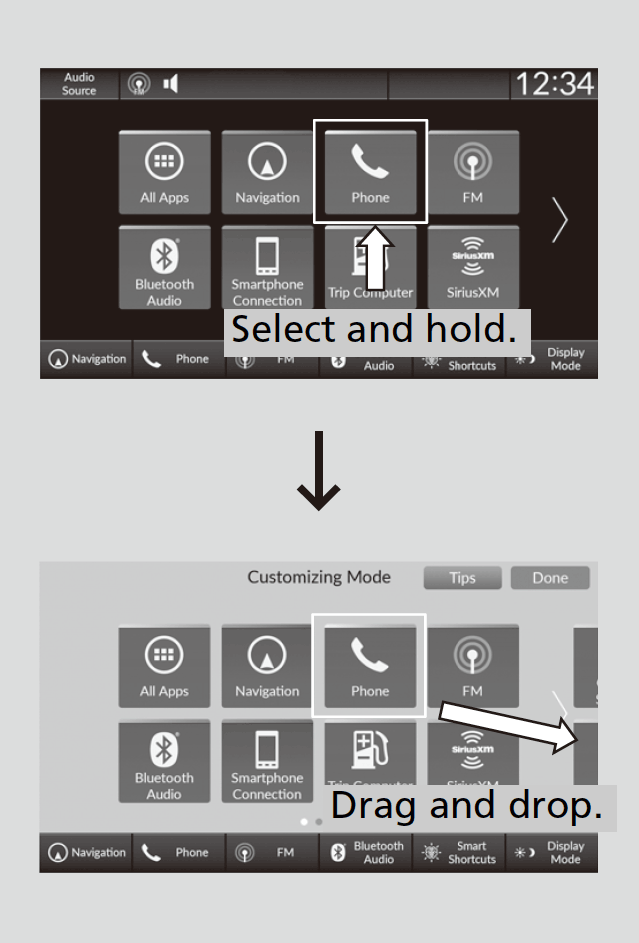
To move/remove icons on the home screen
You can change location on the home screen.
-
- Press the button.
- Select and hold an icon.
- The screen switches to the customization screen.
- Drag and drop the icon to where you want it to be.
- Drag and drop the icon to Hide to remove from the home screen.
- Select Done.
- The screen will return to the home screen.
- Press the
-
- Detail
-
You cannot delete the All Apps icon.
Apps will not be deleted by deleting the icon on the home screen.
Select Tips to show tips. To hide them, select it again.
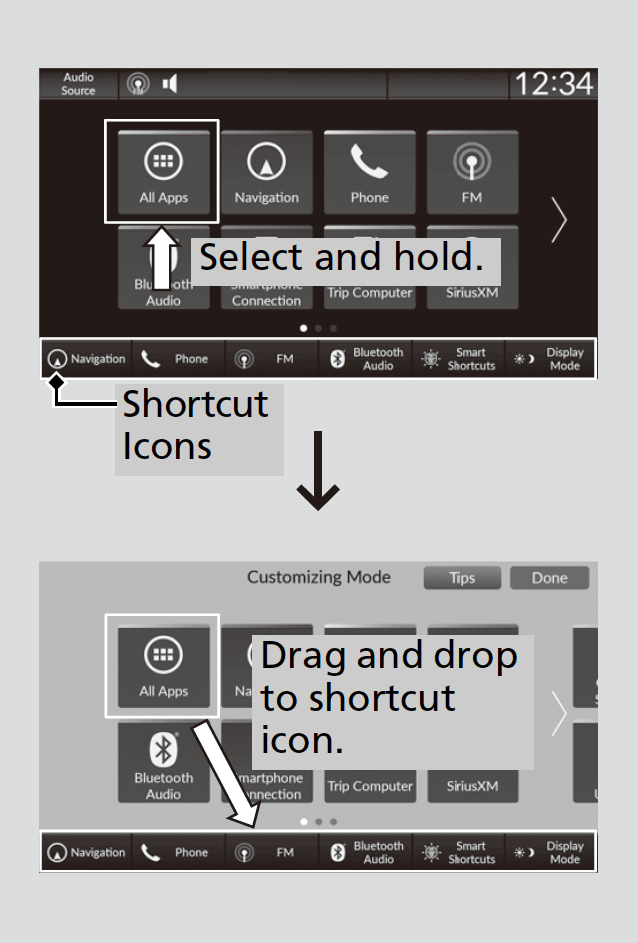
To shortcut icons on the home screen
You can store up to six icons on the bottom of the home screen.
-
- Press the button.
- Select and hold an icon.
- The screen switches to the customization screen.
- Drag and drop the icon you want to store to the bottom of the home screen.
- The icon is shortcut.
- Select Done.
- The screen will return to the home screen.
- Press the
-
- Detail
-
Select Tips to show tips. To hide them, select it again.
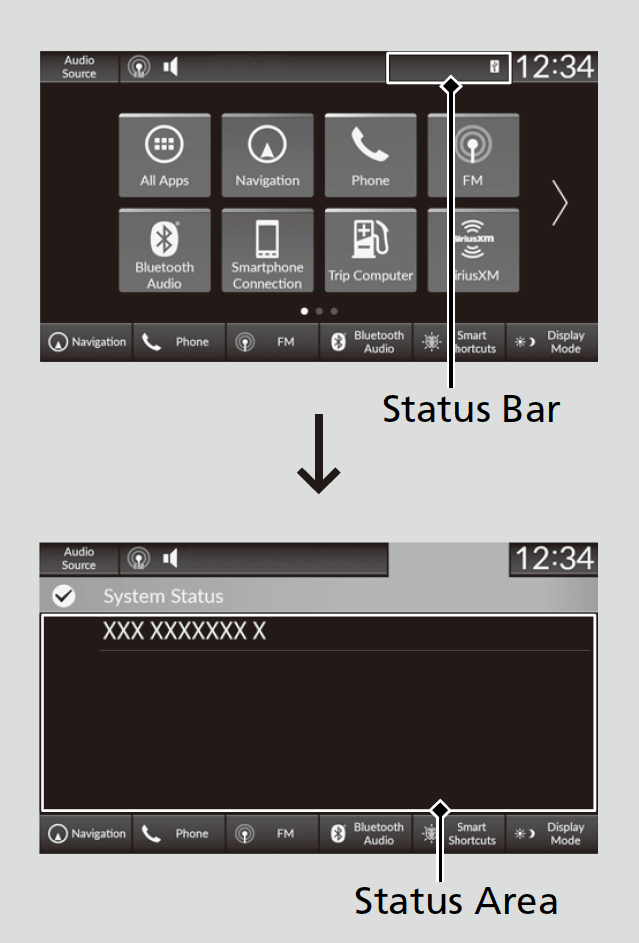
Status Bar
Shows the indicators of the information for the vehicle, connected phones, etc. in the header area. You can confirm the detail information shown in the status area by selecting the status bar.
- Recommended topic(s)