


Apple CarPlay
If you connect an Apple CarPlay-compatible iPhone to the system via the USB port or wirelessly, and the Apple CarPlay icon is selected, you can use Apple CarPlay on the audio/information screen.
- Detail
-
We recommend that you update iOS to the latest version when using Apple CarPlay.Park in a safe place before connecting your iPhone to Apple CarPlay and when launching any compatible apps.While connected to Apple CarPlay, it is not possible to use Bluetooth® Audio or HandsFreeLink®. You can only make calls or listen to music through Apple CarPlay. Other previously paired phones can use the Bluetooth® Audio.When using Hands Free, you can only control it with Siri.
Apple CarPlay and Android Auto cannot run at the same time.For details on countries and regions where Apple CarPlay is available, as well as information pertaining to function, refer to the Apple website.Use of Apple CarPlay will result in the transmission of certain user and vehicle information (such as vehicle location, speed, and status) to your iPhone to enhance the Apple CarPlay experience. You will need to consent to the sharing of this information on the audio/information screen.Apple CarPlay Operating Requirements & LimitationsApple CarPlay requires a compatible iPhone with an active cellular connection and data plan. Your carrier’s rate plans will apply.Changes in operating systems, hardware, software, and other technology integral to providing Apple CarPlay functionality, as well as new or revised governmental regulations, may result in a decrease or cessation of Apple CarPlay functionality and services. Honda cannot and does not provide any warranty or guarantee of future Apple CarPlay performance or functionality.It is possible to use third-party apps if they are compatible with Apple CarPlay. Refer to the Apple website for information on compatible apps.Only initialize Apple CarPlay when you are safely parked.
When Apple CarPlay first detects your iPhone, you will need to set up your iPhone. Refer to the instruction manual that came with your iPhone.You can also use the method below to set up Apple CarPlay:
Select Home → General Settings → Connections → Manage Device Connections → Select Device.Use of user and vehicle informationThe use and handling of user and vehicle information transmitted to/from your iPhone by Apple CarPlay is governed by the Apple iOS terms and conditions and Apple’s Privacy Policy.If there is a problem with the connection of your iPhone, an error code will be displayed.
Wireless Apple CarPlay and AT&T Hotspot cannot be used at the same time. When using Apple CarPlay and AT&T Hotspot at the same time, connect to Apple CarPlay with a USB cable.
Apple CarPlay Menu
For details on available applications, please refer to the Apple CarPlay website.
Apps displayed on your screen can be changed with your iPhone.
Select the Honda icon on the Apple CarPlay menu screen to go back to the home screen.
Connect Apple CarPlay Using the USB Cable
- Connect the iPhone to the USB charging/connector port.
- The confirmation screen will be displayed.
- Select Yes.
- If you do not allow this consent, select No.
You may change the consent settings under the Connections settings menu.
Connect Apple CarPlay Wirelessly
- Select Home.
- Select Apple CarPlay.
- Select Check Device List or Connect New Phone.
- Pair the iPhone to the vehicle’s Bluetooth® HandsFreeLink® (HFL) system.
- Select Yes.
Operating Apple CarPlay with Siri
Press and hold the 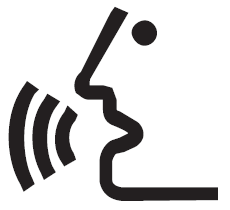 (Talk) button to activate Siri.
Press again to deactivate Siri.
Press and release to activate standard voice recognition system.
- Detail
-
Below are examples of questions and commands for Siri:
- What movies are playing today?
- Call dad at work.
- What song is this?
- How’s the weather tomorrow?
- Read my latest email.
For more information, please visit www.apple.com/ios/siri.
- Recommended topic(s)