


Playing Bluetooth® Audio
Your audio system allows you to listen to music from your Bluetooth-compatible phone.
This function is available when the phone is paired and connected to the vehicle’s Bluetooth® HandsFreeLink® (HFL) system.
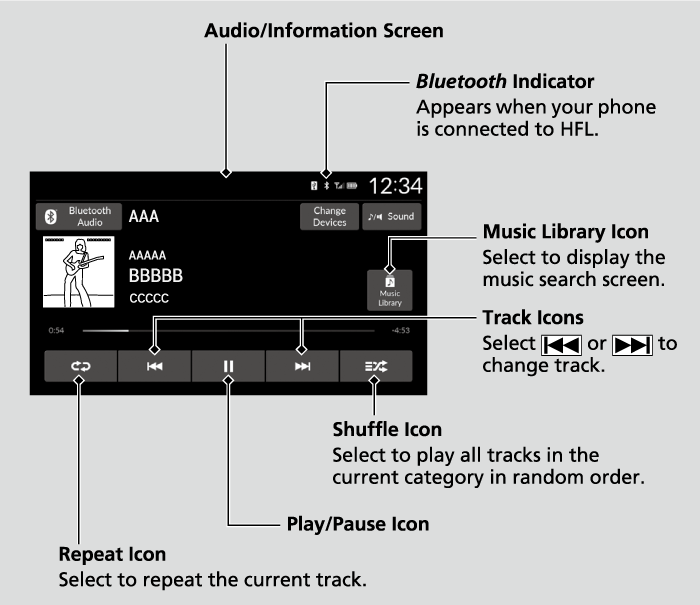
- Detail
-
Not all Bluetooth-enabled phones with streaming audio capabilities are compatible with the system.
For a list of compatible phones:- U.S.: Visit https://mygarage.honda.com/s/honda-handsfreelink-compatibility-check, or call 1-888-528-7876.
- Canada: Call 1-855-490-7351.
In some states, it may be illegal to perform some data device functions while driving.Only one phone can be used with HFL at a time. When there is more than one paired phone in the vehicle, the system automatically connects to the prioritized phone. You can assign priority to a phone in the Priority Device menu.
If a phone is currently connected via Apple CarPlay or Android Auto, Bluetooth® Audio from that phone is unavailable.
To Play Bluetooth® Audio Files
- Make sure that your phone is paired and connected to HFL.
- Select Audio Source and then Bluetooth Audio.
If the phone is not recognized, another HFL-compatible phone, which is not compatible for Bluetooth® Audio, may already be connected.
- Detail
-
To play the audio files, you may need to operate your phone. If so, follow the phone manufacturer's operating instructions.Switching to another mode pauses the music playing from your phone.If any audio device is connected to the USB port, you may need to select Audio Source to select Bluetooth Audio.You can change the connected phone by selecting Change Devices.
To pause or resume a file
Select the play/pause icon.
How to Select a Song from the Music Search List
- Select Music Library.
- Select a search category (e.g., Albums).
- Select an item.
- Select an item repeatedly until a desired item you want to listen to is displayed.
- Detail
-
Depending on the Bluetooth® device you connect, some or all of the categories may not be displayed.
How to Select a Play Mode
You can select repeat and shuffle modes when playing a song.
- Detail
-
Depending on the Bluetooth® device you connect, some or all of the functions may not be displayed.
Shuffle/Repeat
Repeatedly select shuffle or repeat icon until you find a play mode option of your preference.
Play Mode Menu Items
Shuffle
 Shuffle off: Shuffle mode to off.
 Shuffle All Songs: Plays all available songs in a selected list in random order.
Repeat
 Repeat off: Repeat mode to off.
 Repeat all: Repeats all songs.
 Repeat Song: Repeats the current song.
- Recommended topic(s)