


Audio/Information Screen
Displays the audio status. From this display, you can go to various setup options.
Switching the Display
Using the audio/information screen
Press the  button to go to the home screen.
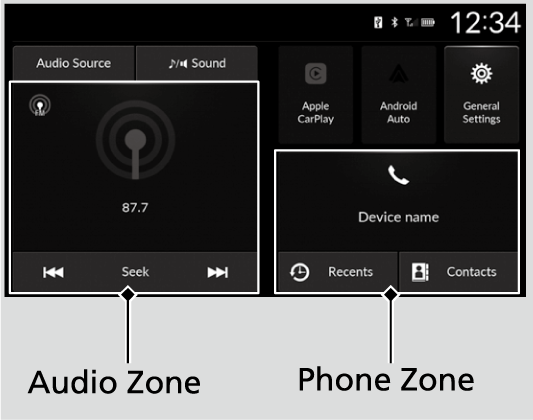
Select the following zones or icons on the home screen.
- Detail
-
Touchscreen operation
- Use simple gestures - including touching, swiping and scrolling - to operate certain audio functions.
- Some items may be grayed-out during driving to reduce the potential for distraction.
- You can select them when the vehicle is stopped.
- Wearing gloves may limit or prevent touchscreen response.
You can change the touchscreen sensitivity setting.
Audio zone
Displays the audio information for each.
Music Playback via Wired Connection
Music Playback via USB Flash Drive
Phone zone
Displays the HFL information.
Bluetooth® HandsFreeLink®Using HFLHFL Menus
Apple CarPlay/Android Auto
Displays Apple CarPlay or Android Auto.
General Settings
Enters the customizing menu screen.
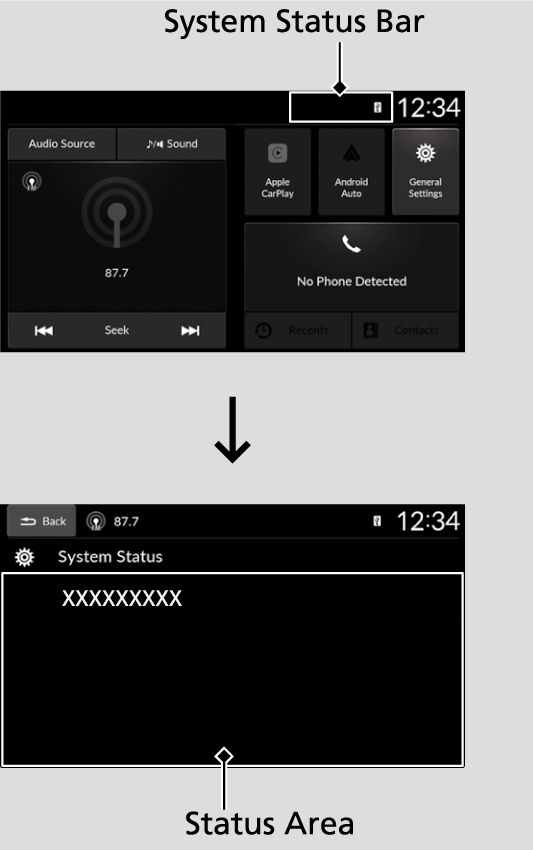
Status Bar
-
- Select the system status bar.
- The status area appears.
- Select an item to see the details.
- Select Back to close the area.
- Select the system status bar.
-
- Recommended topic(s)