
Driver Information Interface Left Side Area
Shows the current mode for audio and phone information, etc.
Clock
Shows the clock.
- You can choose whether the clock is displayed on the driver information interface.
Clock Setup
Manual time adjustment is not necessary because the clock is using satellite information. For details on other settings, please refer to the Navigation or Audio instruction manuals for your vehicle.
Elevation and Compass
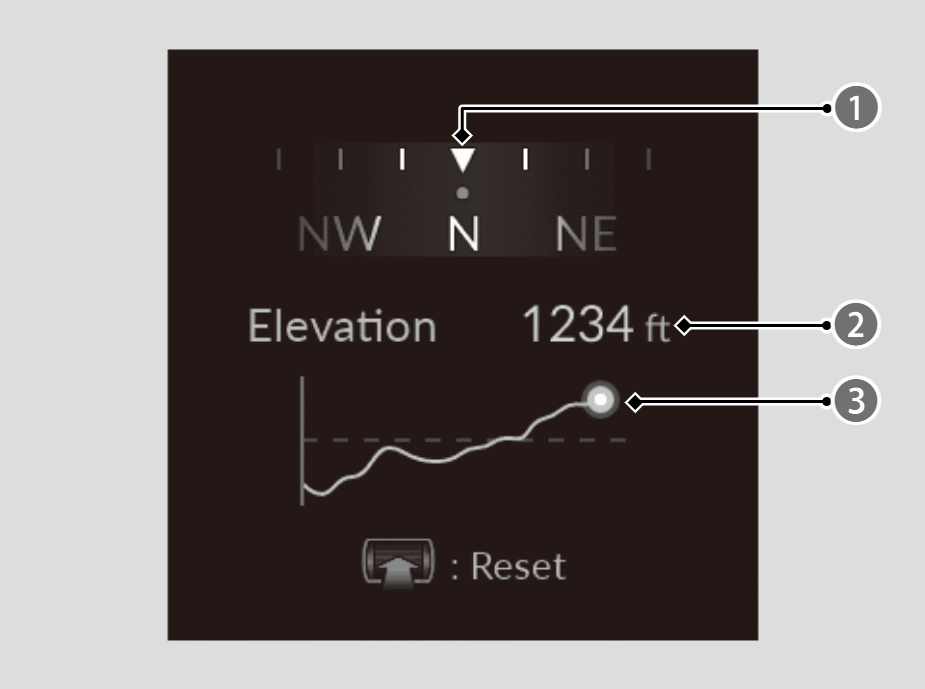

Compass

Elevation

Elevation History
Select Elevation and compass on the customize display to show elevation and the compass.
- This display will automatically be shown when the TRAIL mode is selected. It is also user selectable when in any drive mode.
- This feature uses information from GPS satellite signals, so it requires open skies for the best accuracy. If used when in cities or around large/tall objects, the signal may not be sufficient to display an accurate Elevation. In these situations, the display will not show an elevation value and will instead show -----. Elevation History will also not be displayed.
- Elevation history is shown for the previous 10 miles (16 km) of driving (x-axis). Once you drive further than 10 miles (16 km), the display shows a scrolling history of the past 10 miles (16 km). The Y-axis represents the elevation. This starts with a scale of +/-200 feet (61 meters) from your current elevation. As you go beyond that, the elevation scale will adjust to continue to show all your data.
Reset Elevation History
Press the left selector wheel, and then select Reset.
Customize Display
- When you customize settings, shift to P.
Arrange audio source on the left side area
You can choose which sources to display on the audio source screen.
- Roll the left selector wheel until Customize display is selected, then press the left selector wheel.
- Roll the left selector wheel to scroll to select Hide/show, then press the left selector wheel.
- Roll the left selector wheel to scroll between audio sources, then press the left selector wheel to check or uncheck them.
Select the display content on the left side area
You can change the display content on the left side area. Select Audio & clock, Elevation and compass, or OFF.
- Roll the left selector wheel until Customize display is selected, then press the left selector wheel.
- Roll the left selector wheel to scroll to select Display content, then press the left selector wheel.
- Roll the left selector wheel to scroll to select your desired content, then press the left selector wheel.